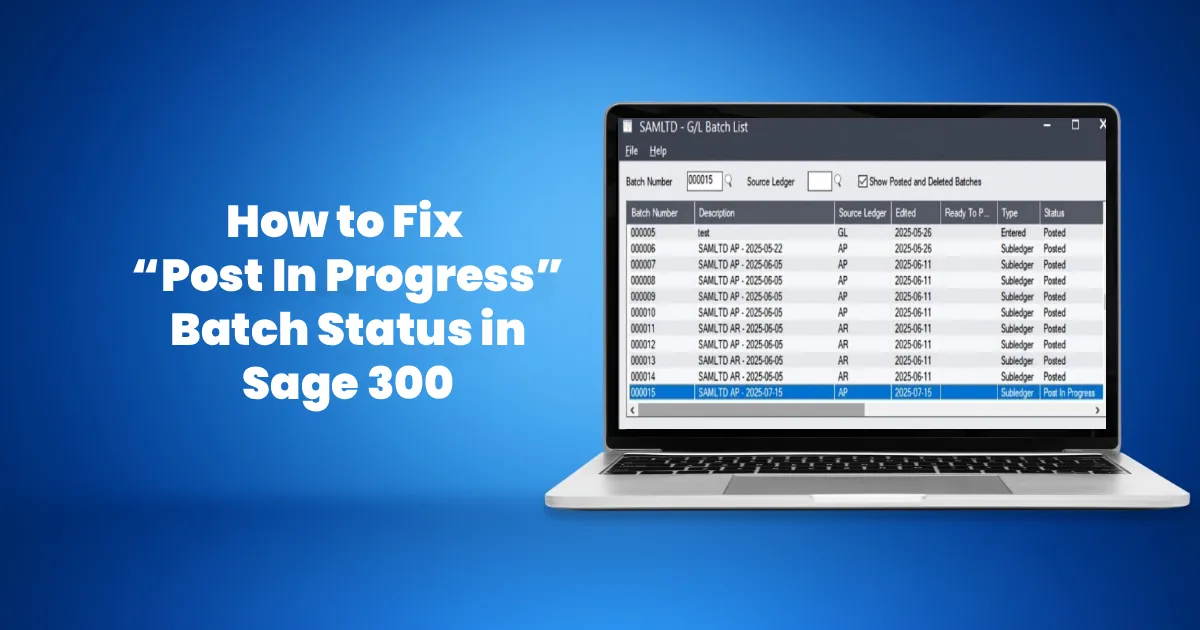
If you’ve been using Sage 300 for some time, chances are you’ve encountered a batch with the status “Post In Progress.” This situation can be frustrating, especially when the batch appears to be stuck and prevents further processing. In this blog, we’ll explain why this happens and outline the steps you can take to resolve it safely.
What Does “Post In Progress” Mean?
A batch shows a Post In Progress status when the posting process does not complete successfully. This usually happens when Sage 300 is interrupted during posting due to various reasons — such as a system crash, network disruption, power failure, or an unexpected logout. When this occurs, Sage 300 assumes the posting process is still running and locks the batch to protect data integrity. Maintaining complete data integrity is important, particularly because the Comptroller and Auditor General (CAG) of India requires accurate batch posting for maintaining “true and fair” books of accounts as per Section 3.1 of the Manual on Information Systems (IS) Audit, 2024, that discuss “Inherent Risk” in IT environments.
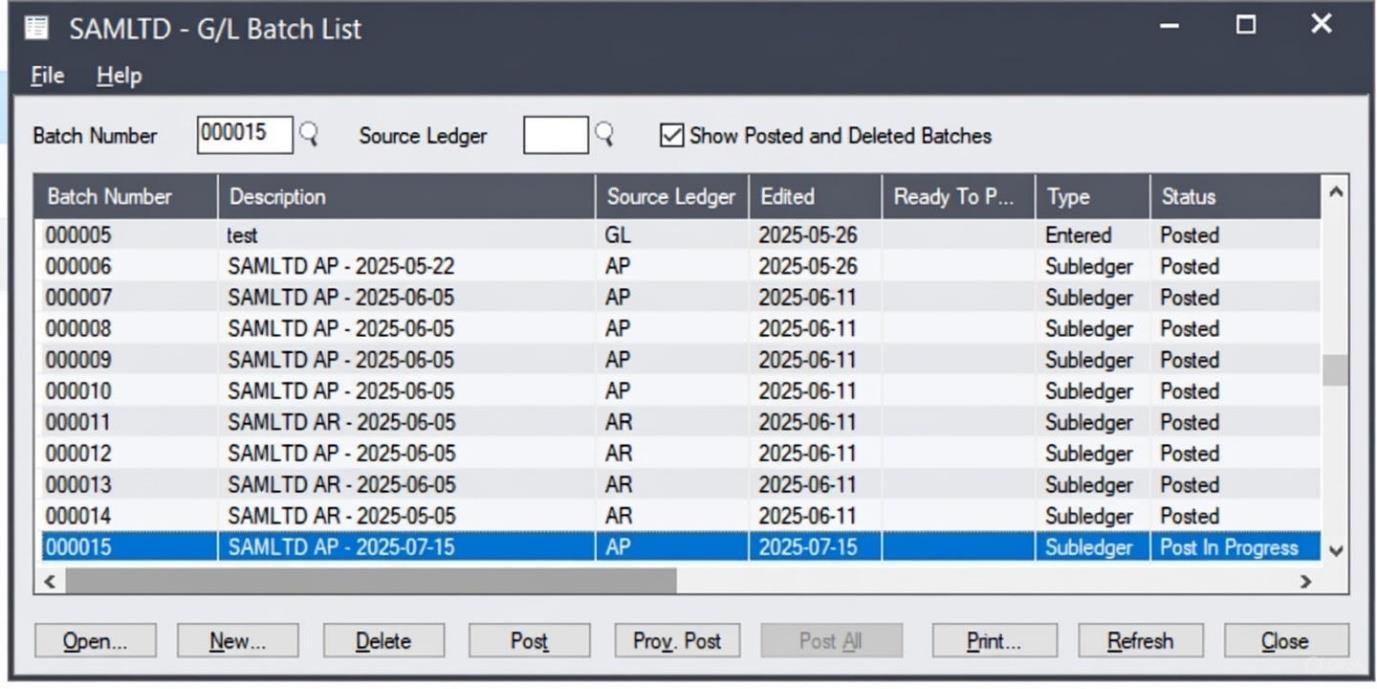
Common Causes
A batch may receive a Post In Progress status due to:
- An interrupted or incomplete posting process
- System or application crashes during posting
- Network connectivity issues
- Corruption in the Restart.ism file or database-related files
How to Resolve “Post in Progress” Batch Status in Sage 300?
Follow the steps below in sequence to resolve a batch stuck in Post In Progress status:
1. Re-post the Batch:
Start by attempting to post the batch again. In some cases, Sage 300 is able to complete the posting process without further action.
If the issue persists, there may be corruption in the Restart.ism file or database.
2. Run the Sage 300 Scan ISAM Utility
Use the Sage 300 ERP Scan ISAM utility to check for any corruption in .ism files. If the utility detects issues and prompts you to fix them, click OK and allow the repair process to complete.
3. Log Out All Users
If no errors are found, ensure that all users are logged out of Sage 300 ERP. This is critical to prevent file locks while performing the next steps.
4. Rename the Restart.ism File
Locate and rename the Restart.ism file in the Sage 300 Shared Data SITE directory.
By default, in Sage 300 ERP 2012, the file is located at:
C:\Program Files\Sage\Sage 300 ERP\SHARED DATA\SITE
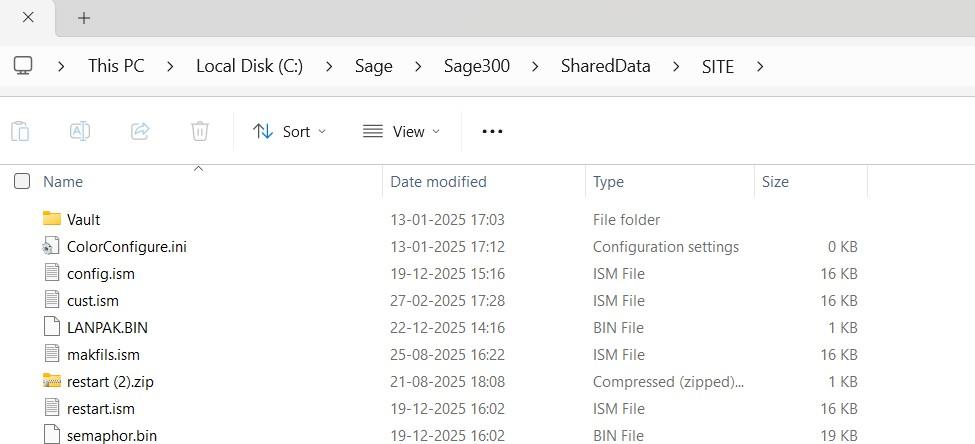
Rename the file (for example, Restart_old.ism) rather than deleting it.
5. Log Back In to Recreate the File
Log back into your Sage 300 company. The system will automatically recreate the Restart.ism file with default settings.
6. Post the Batch Again
Once the new Restart.ism file is created, attempt to post the batch again. In many cases, this resolves the issue.
If recreating the Restart.ism file does not resolve the Post In Progress status; this may indicate data corruption.
At this stage, you should:
- Restore the database from a backup taken prior to posting the affected batch, if available
- If restoring from backup is not possible, contact a data repair specialist to assess and repair the corrupted data
Wrap Up
While using Sage 300, your Batch Status may get stuck to “Post In Progress” due to network disconnections, .ism file corruption, or corrupted SQL data. You may want to try restarting the ISAM tool to check if that helps. If the problem continues, try logging out all the users and renaming the Restart.ism file. Ultimately, the exact resolution depends on the nature of your problem.