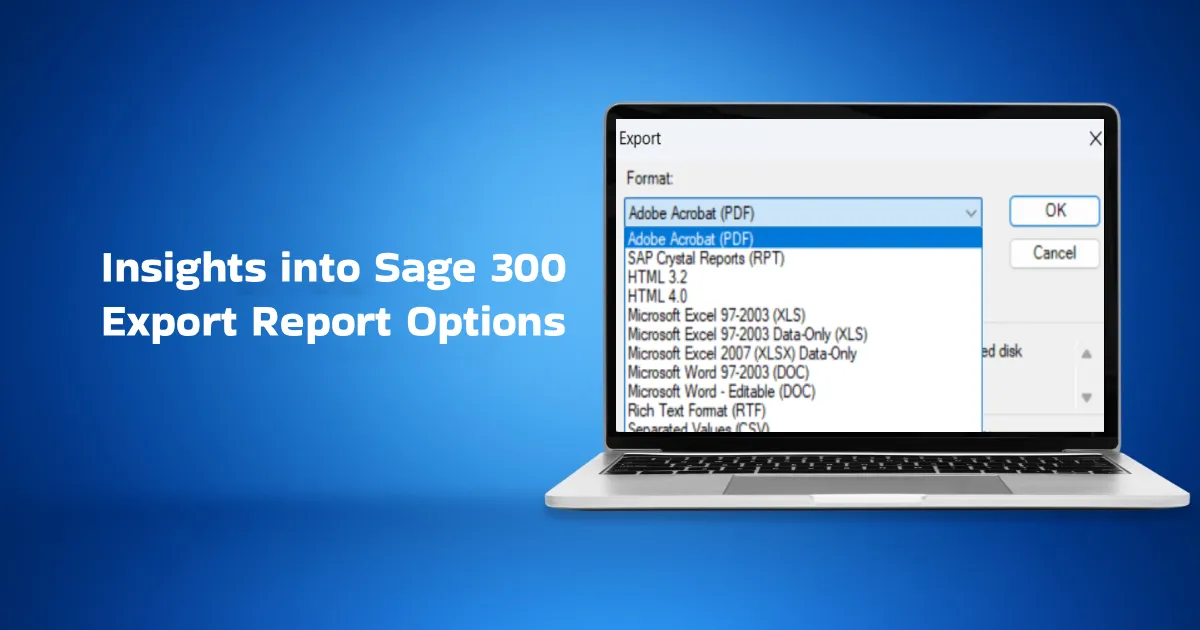
Businesses using Sage 300 often need to export their financial data, inventory reports, or customer information to other applications such as Microsoft Excel and Adobe Acrobat (PDF). Exporting such customized reports can be particularly useful for deeper analysis and strategic decision-making. Sage 300 have Export Report Options which allows users to export reports directly from the Preview Report window into multiple file formats. Each export option serves a different business requirement, such as reporting, data analysis, system integration, or documentation.
What are the Export Report Options Available in Sage 300?
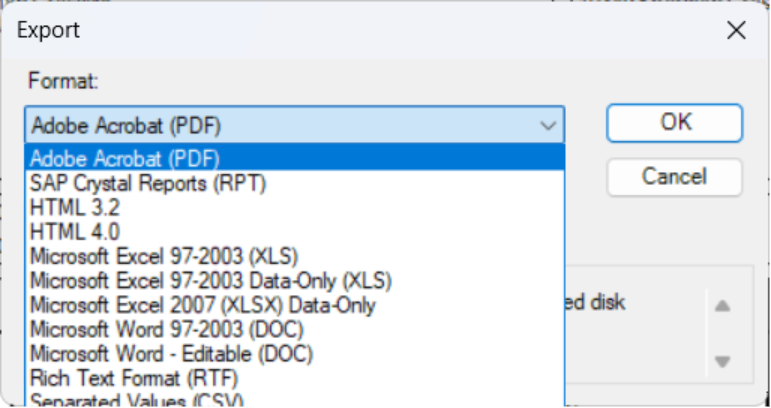
The Export window in the ERP software offers various file formats to export your reports. You can choose one of the file formats depending on your requirements. For example, the Indian Government mandates filing GST records in electronic format, which shall be authenticated by means of a digital signature. As a result, businesses have to map their financial data into a digital format (such as Portable Document Format – PDF) that supports authentication by digital signatures.
Let’s deep dive into the Sage 300 Export Report formats:
1. Adobe Acrobat (PDF)
Exports the report exactly as displayed in the preview, maintaining layout and formatting. In this, Option Formatting is locked and non-editable.
Recommended for-
- Official financial reports
- Audit and compliance documentation
- Email distribution and archiving
2. Microsoft Excel 97-2003 (XLS)
Exports report data into an Excel file for further analysis. The data is editable in excel file, and the report layout may differ from the preview. This option focuses more on data rather than presentation
Recommended for-
- Data analysis and reconciliation
- Pivot tables and charts
- Management reporting
3. Microsoft Excel (Data Only)
This option is similar to the Microsoft Excel (XLS) option. However, it differs in the sense that only the data is printed in the cells without any additional space, formatting, or print criteria. In other words, it only prints the data that is visible in the respective Excel cells.
Recommended For
- Data analysis and reconciliation
- Pivot tables and charts
- Management reporting
4. CSV Export
Description
This option Exports report data in a comma-separated values format without formatting; this format is easily readable by most applications. Thus is easier to use for integration or software analysis purposes.
Recommended for-
- Data integration with external systems
- BI tools and database imports
- Automation and scripting
5. Rich Text Format (RTF) Export
Exports the report in an editable format compatible with Microsoft Word. It allows text and layout edits, but formatting may need adjustment as per analysis
Recommended for-
- Adding explanations or notes to reports
- Management documentation
- Custom formatted reports
6. Text File (TXT) Export
Exports report content as plain text. It has no formatting as it is a text file and is generally suitable for technical or backend use.
Recommended for-
- Legacy system usage
- Data verification and troubleshooting
- Lightweight storage
7. Microsoft Word:
Exports the Data in a Word (.docx) file, which is editable and keeps the standard formatting as seen in the preview.
Recommended for-
- Standardized document output
- Applying digital signatures or watermarks
- Document management systems
8. SAP Crystal Report (.rpt)
Exports the report in .rpt format, which is a Crystal Report Readable file. Generally used to make changes to the .rpt file, which is being used to print, so that changes can be made permanently moving forward.
Recommended for-
- Updating .rpt files
- Checking the source of data
9. HTML 4.0 / 3.2
This option lets you print a report and save it in a specified directory, wherein if the directory is used to embed the files on a website, then this output will be embedded as a hyperlink and show the report in the browser.
Recommended for-
- Embedding the output on Websites
- Used for display to anyone accessing the website
- No need to download and consume space on every system
Best Practices for selecting export types:
- Use PDF for final and audit-ready reports
- Use Excel or CSV for data manipulation and integration
- Verify formatting after exporting to Excel or RTF
- Store exported reports in secure, access-controlled locations
Wrapping Up
Sage 300 provides multiple export options from the Preview Report screen to support different operational and reporting needs. Selecting the appropriate export format ensures efficient reporting, accurate analysis, and seamless integration with external systems.