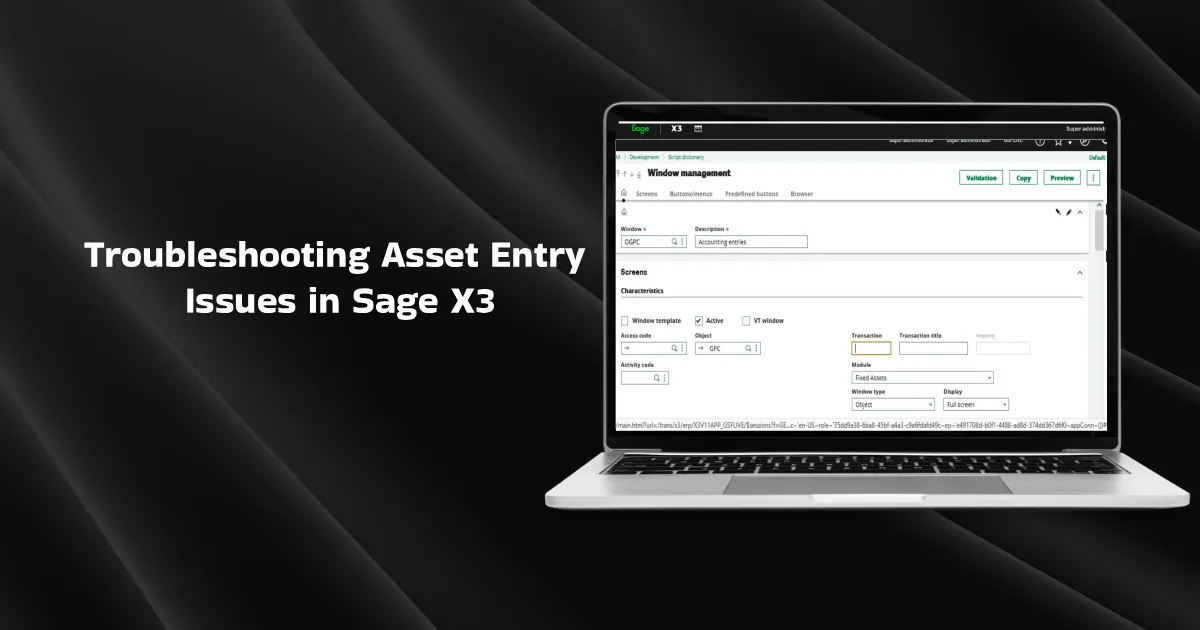
Sage X3 delivers a comprehensive fixed assets management module to get deeper insights into your assets, calculate depreciation, and automate compliance & tax legislation activities. This best-in-class ERP software provides a complete platform to manage your fixed assets throughout their entire lifecycle, from procurement to disposal.
The General Financial Rules, 2017 mandate the maintenance of the Fixed Assets Register and mandatory physical verification of the company’s fixed assets, such as plant, machinery, equipment, furniture, and fixtures. It also discusses rules pertaining to asset disposal. In order to stay compliant with these rules, businesses must record their assets, calculate depreciation, and follow other asset-specific accounting practices.
Recently, some users have reported Sage X3 asset entry issues, such as problems loading the Accounting Entry screen, visibility issues with certain accounting entries, and other glitches with asset balance. In this blog, we will discuss each of these issues in detail and their potential workarounds.
Common Asset Entry Issues
Here is a summary of the most commonly reported asset entry issues within the fixed asset management module:
- The Accounting Entry screen for Asset was not opening.
- Certain accounting entries were not visible / removed from the Accounting Entry screen.
- Asset balances were expected to be impacted only after running Asset Utilities, such as:
- Depreciation
- Asset Transfer
- Asset Disposal
Potential Workarounds to Sage X3 Asset Entry Issues
Now, let us discuss the potential workarounds to the above-mentioned issues:
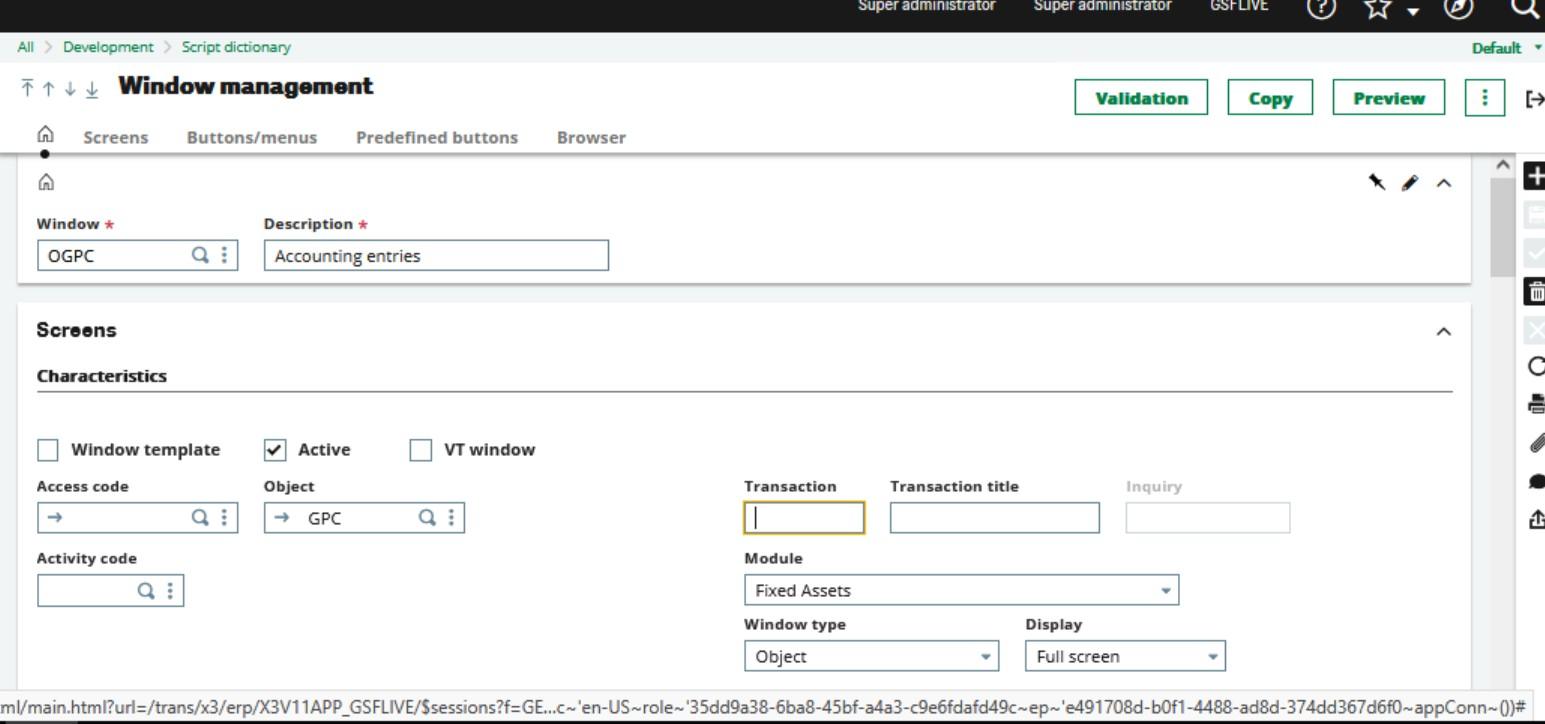
1. Accounting Entry Screen & Object Validation
-
- Validate the Accounting Entry screen for Asset.
- Validate the object associated with Asset Accounting Entries.
2. Context Synchronization
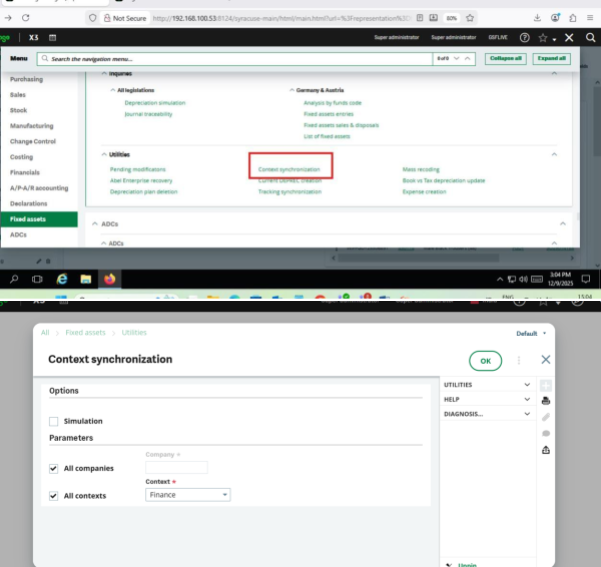
- Perform Context Synchronization via Utilities → Synchronization.
- Post synchronization:
- The Accounting Entry screen opened successfully.
- The problematic accounting entry was removed from the Accounting Entries list.
Note: The asset entry that was previously visible on the Accounting Entry screen was removed after synchronization.
Additional Issue Identified: Trial Balance Mismatch
- After context synchronization, the Trial Balance did not match the actual ledger balances.
Accounts Impacted
- 1700
- 6215
- 6216
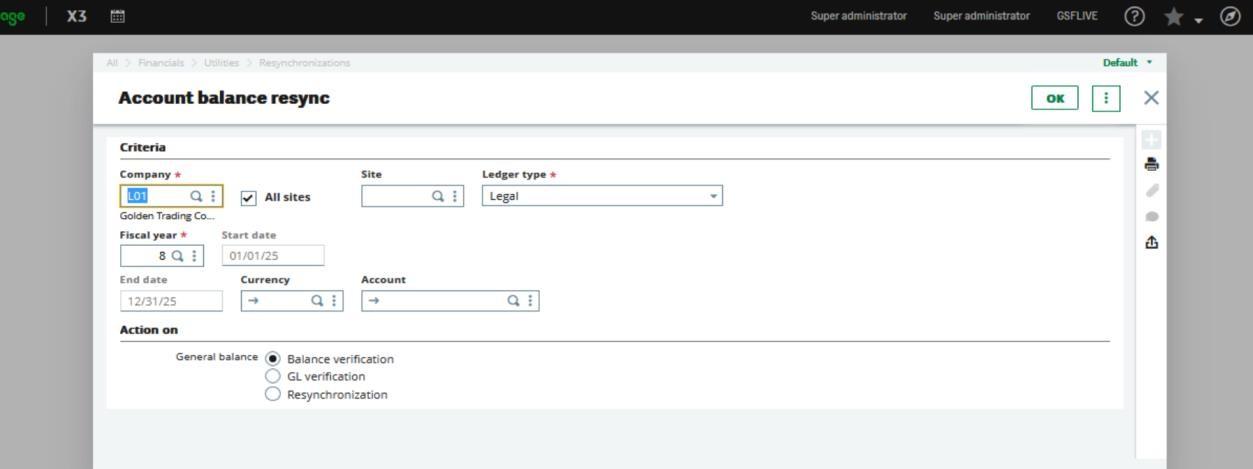
Different Ways to Resolve Trial Balance Variance
1. Resynchronization
- Perform resynchronization of balances for the impacted accounts
2. Balance Verification
- Verify account balances after resynchronization to ensure accuracy.
3. GL Verification
- Validate corresponding General Ledger entries to confirm consistency across modules.
Final Words
We hope that this blog has helped you fix your asset entry issues in sage x3 and transform your existing asset management process. Fixing common asset entry issues will help you improve control over your assets and integrate asset-specific operations with your existing accounting systems.