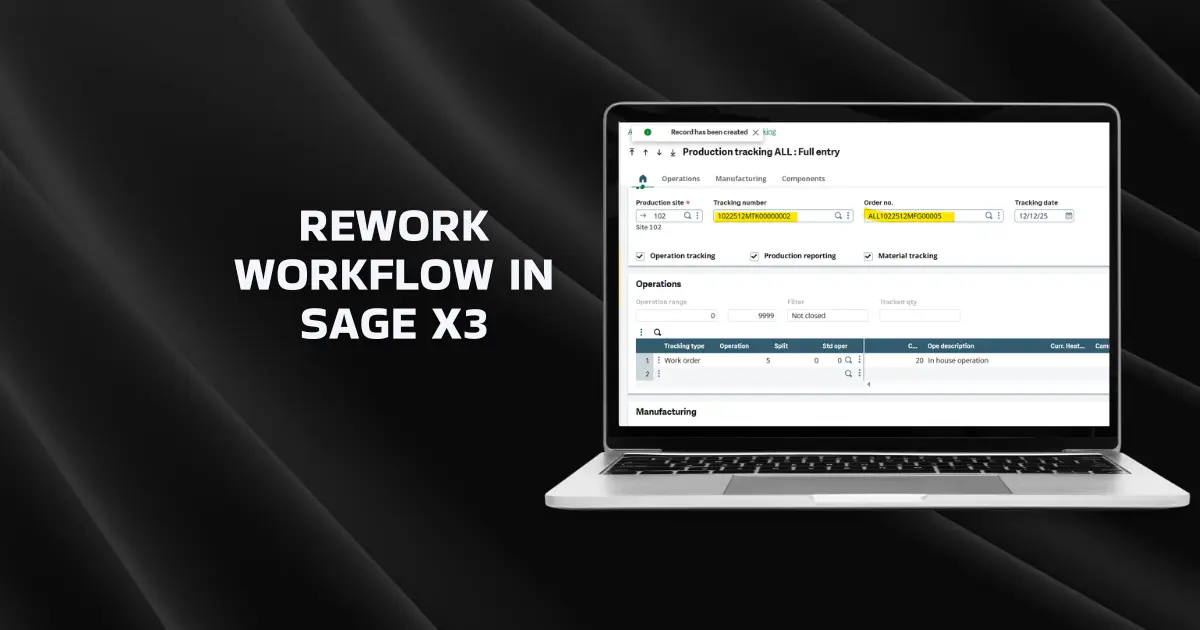
Sometimes, you may need to rework the rejected quantity of finished goods.
For example, in the steel manufacturing industry, this is common because products may need rework due to issues like incorrect fabrication or machine errors.
To manage this in Sage X3, we create an alternative BOM specifically for rework orders. The standard BOM should remain unchanged, as it is used only for regular production. Using a separate BOM also helps us easily track all rework orders.
To set this up, follow the steps below.
How to Set Up the Rework Workflow in Sage X3
⇒ BOM Code:
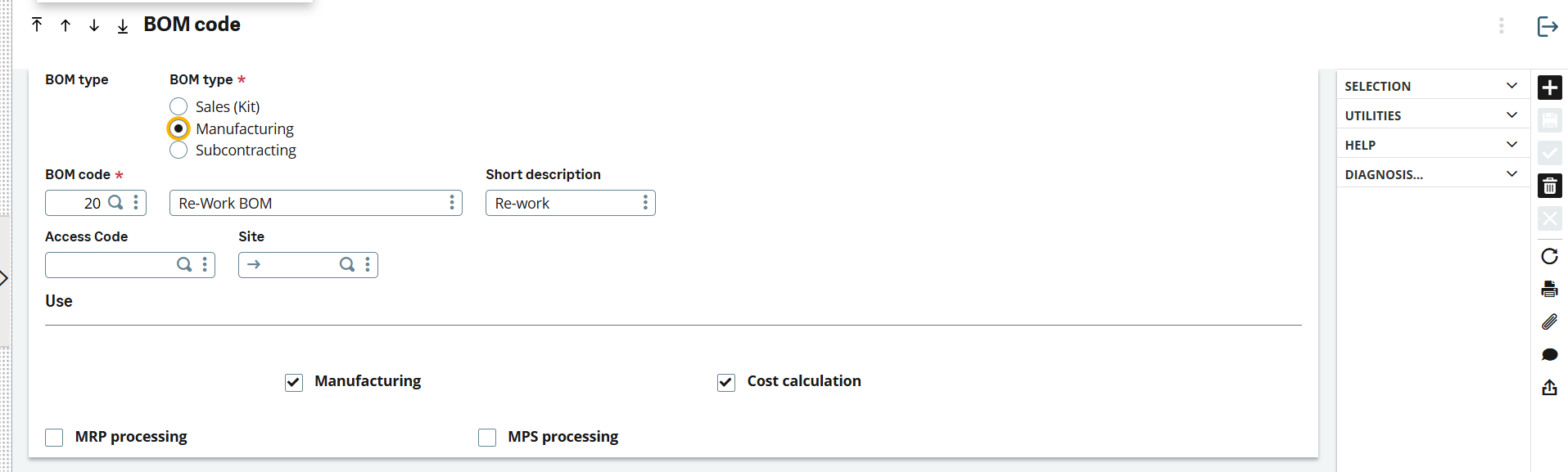
Go to Common Data >> Boms >> BOM Codes and create an alternate BOM code with the Manufacturing type. Make sure the BOM code is unique and not duplicated.
⇒ Bill Of Material (BOM):
Create a new alternate Bill of Material (BOM) for the finished product.
Note: As per the screenshot, the ERP software does not allow using the parent product as a component.
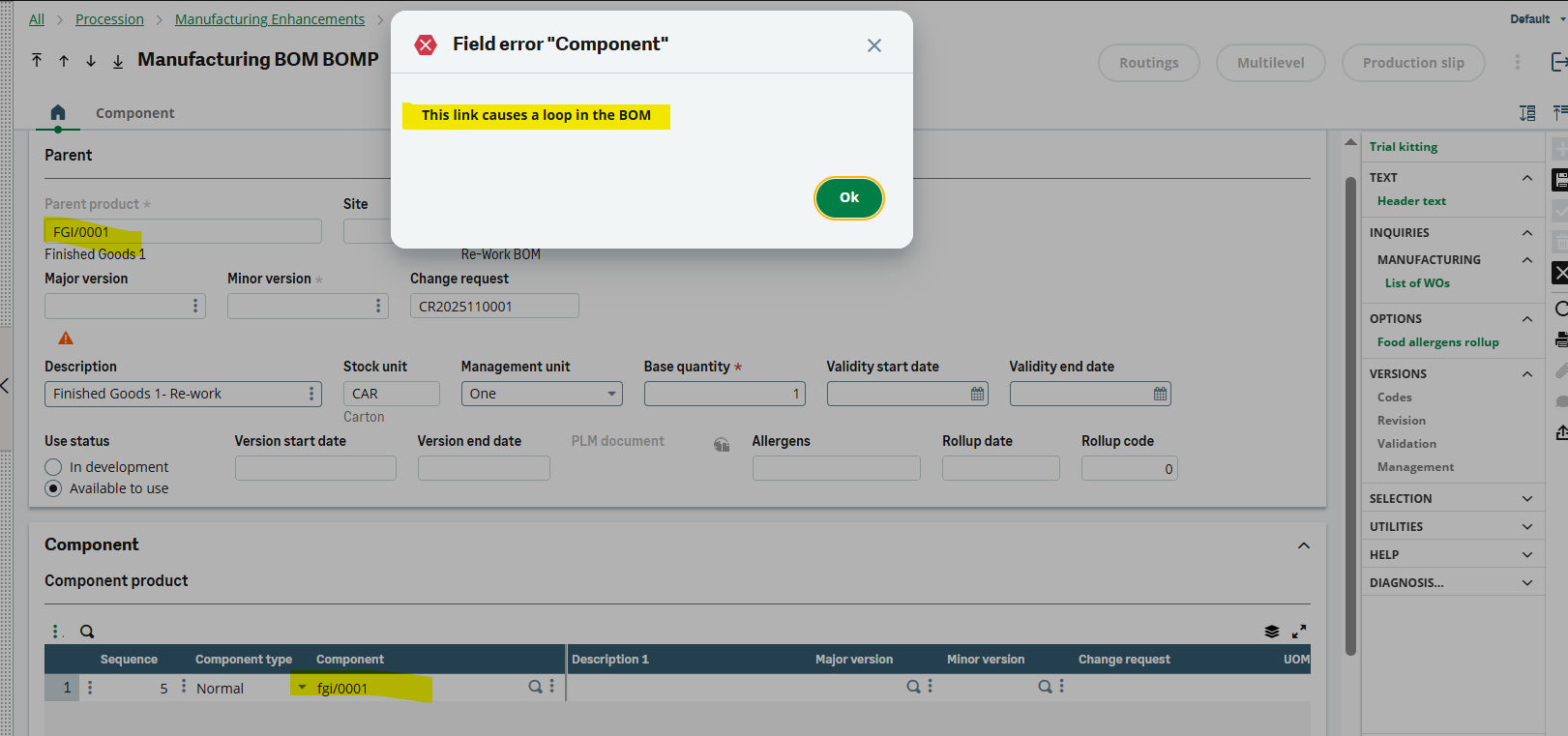
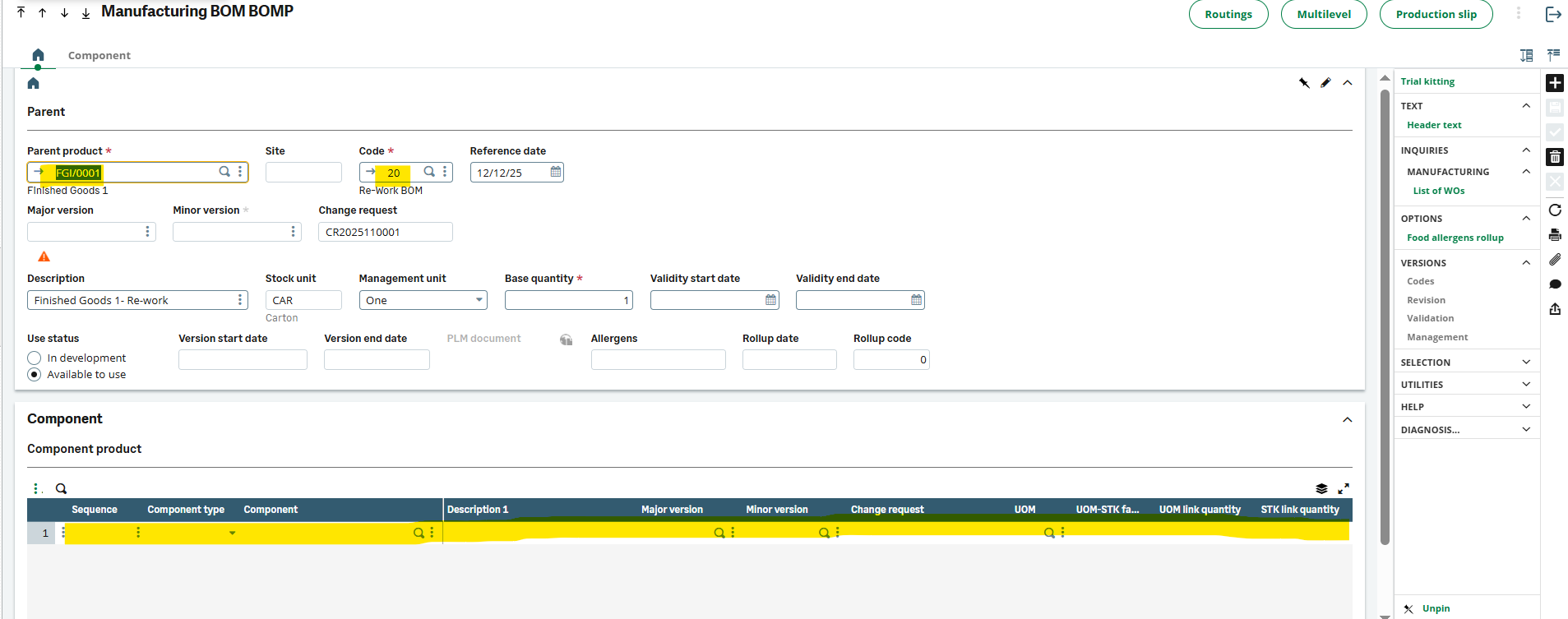
Therefore, leave the component field blank. Simply select the parent product, choose the rework BOM code you created, and fill in the other required details (except the component).
⇒ Routing Code:
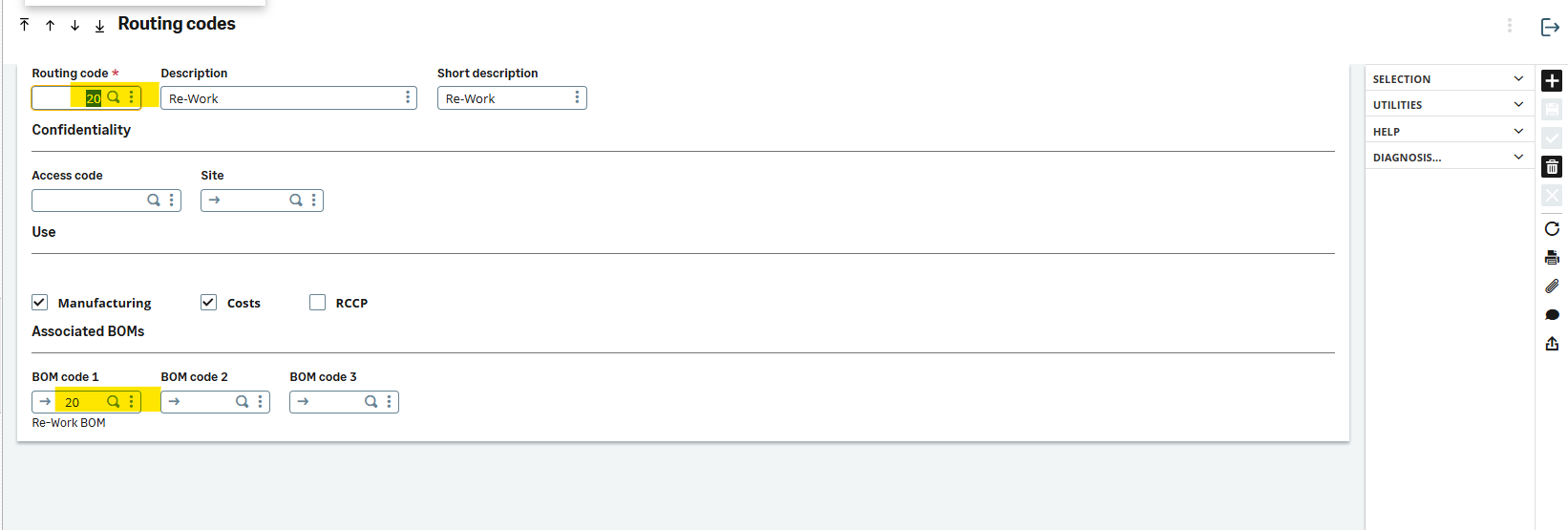
Create the Routing Code using the same name as the BOM Code to ensure multilevel
BOMs can be maintained if needed.
⇒ Routing:
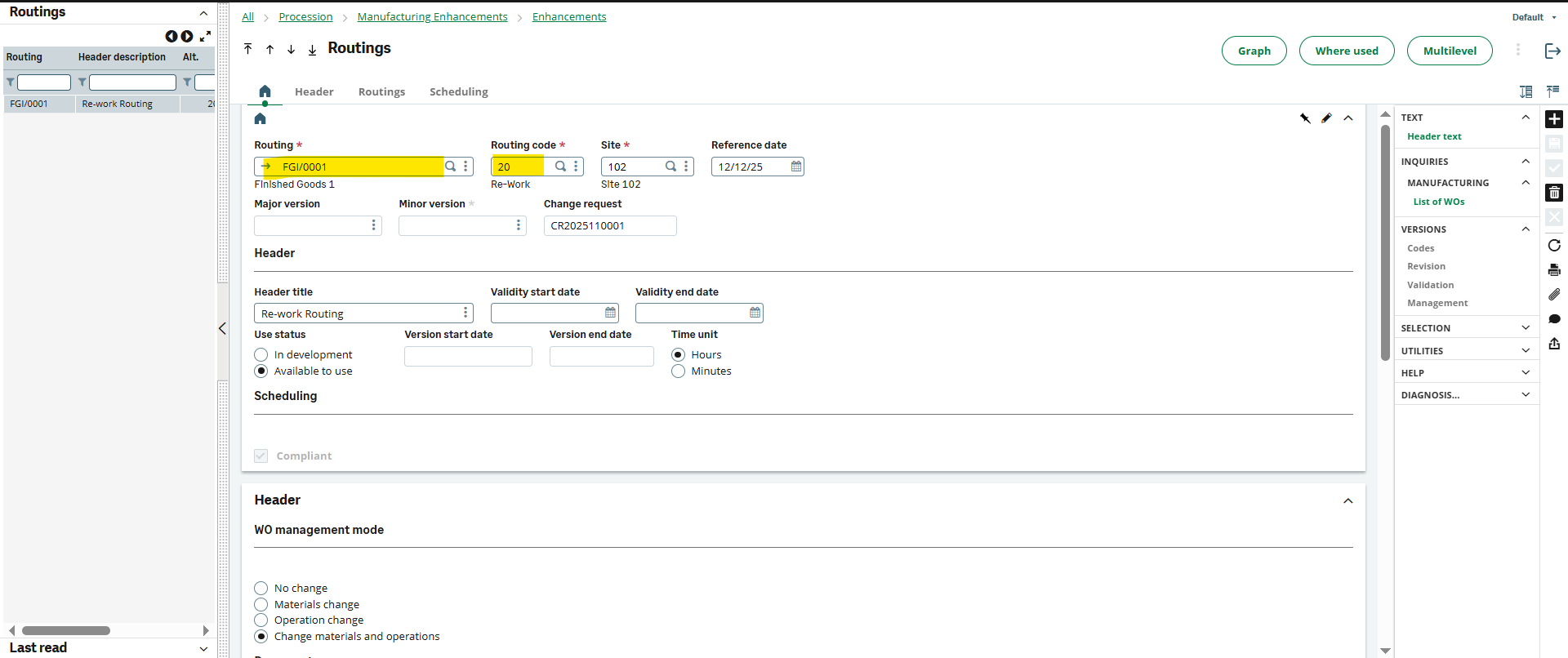
Creating the routing is the same process as creating a regular routing. Set it up as needed, but be sure to select the rework routing code.
⇒ Work Order:
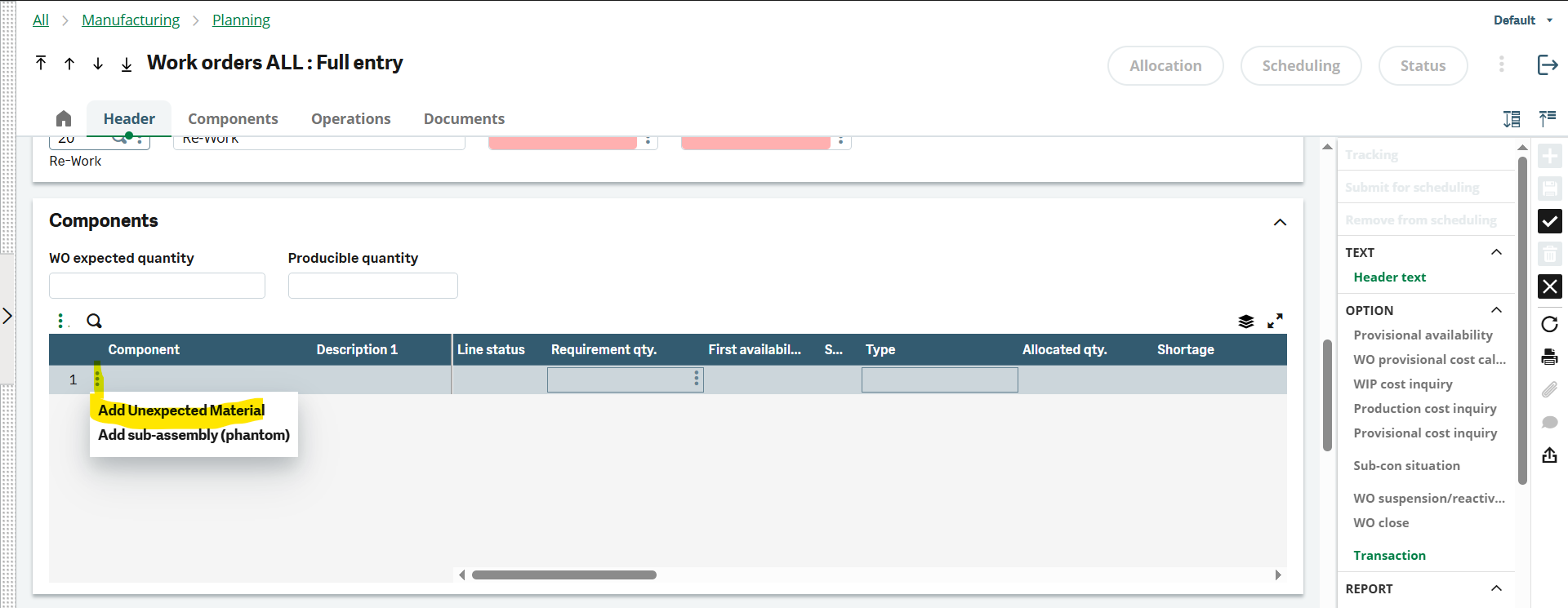
When creating the work order, add the component as an unexpected material because the rework is done on the same parent product quantity.
At the component line, click the three dots and choose “Add Unexpected Material.”
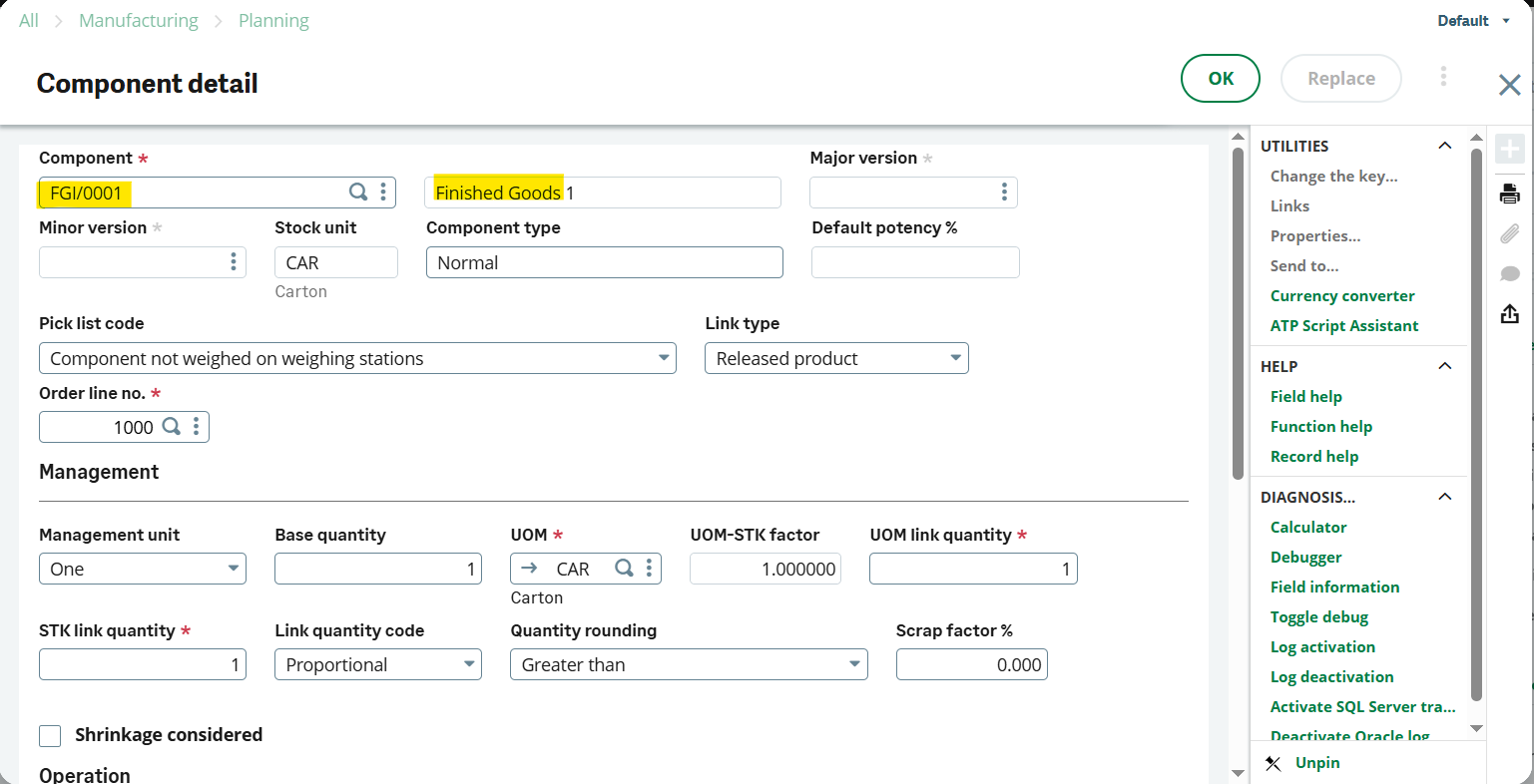
Select the same parent product and click “OK”
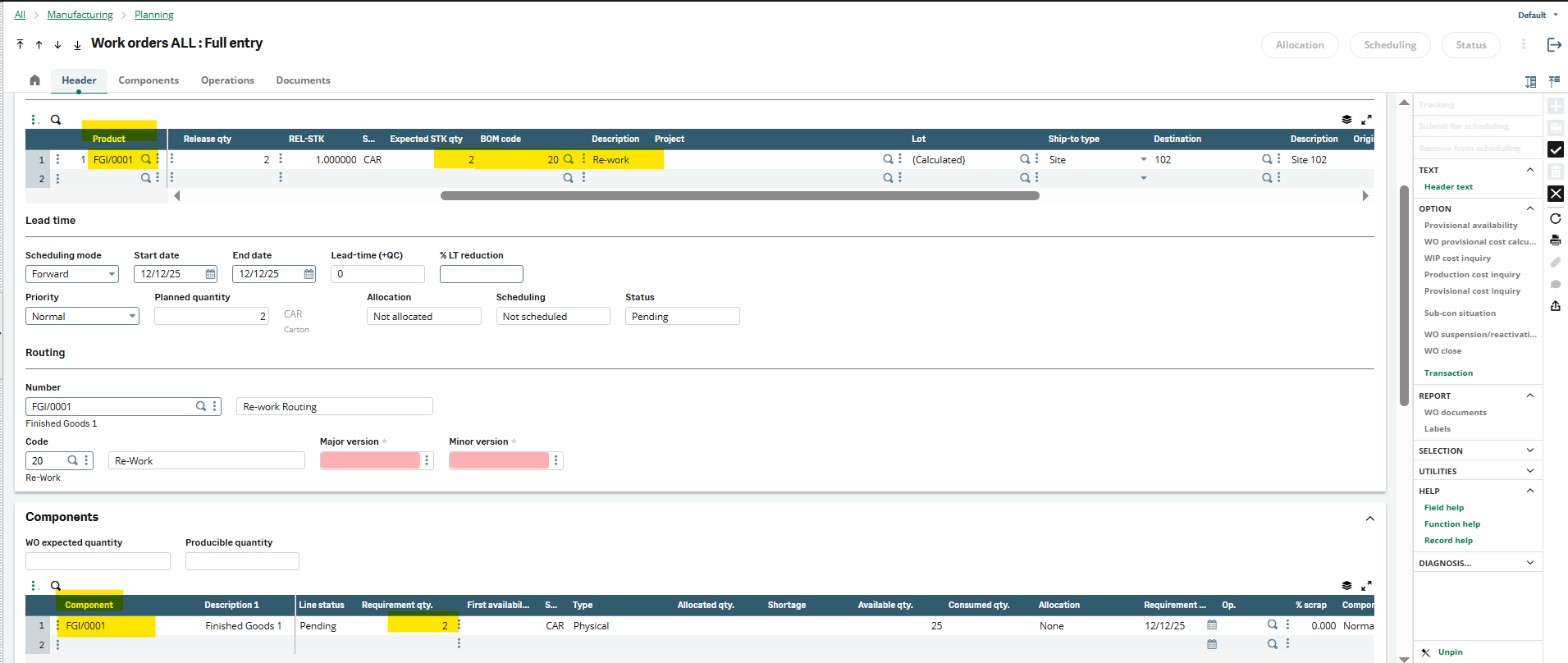
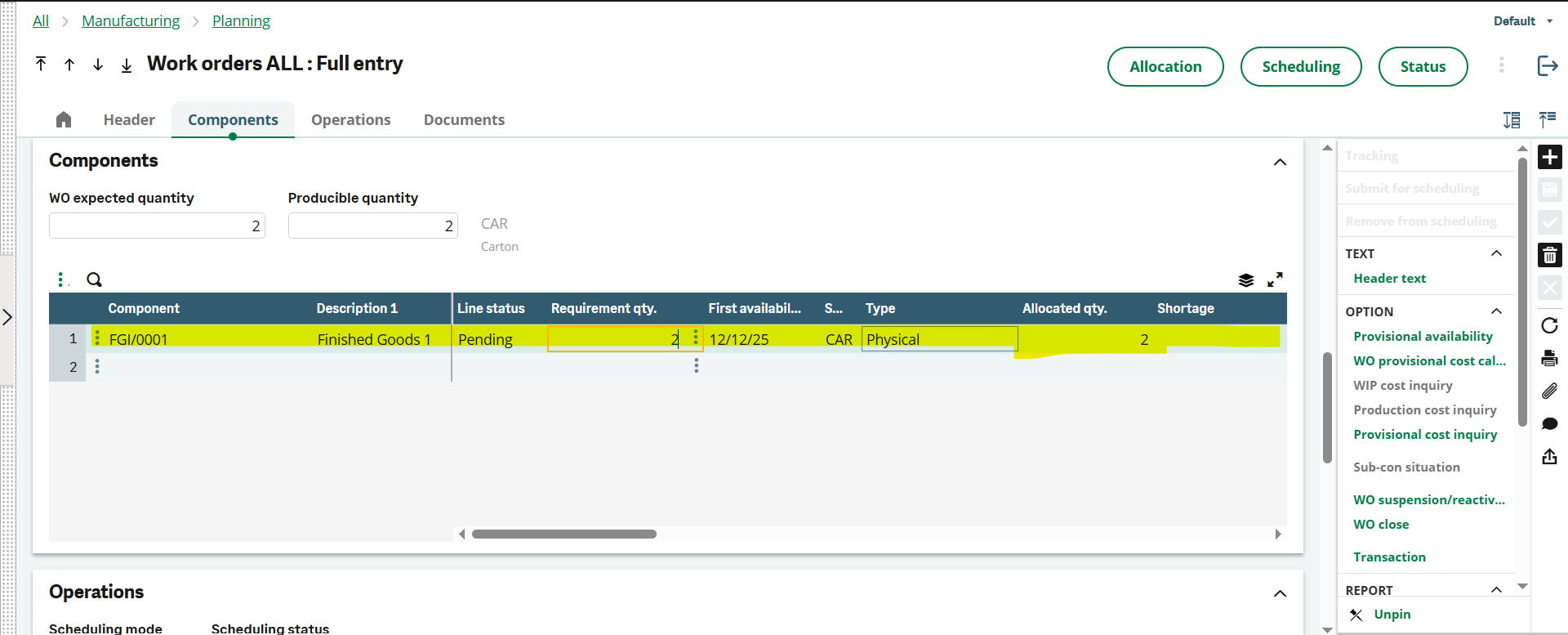
As shown in the snapshot below, the released product and the component are the same.
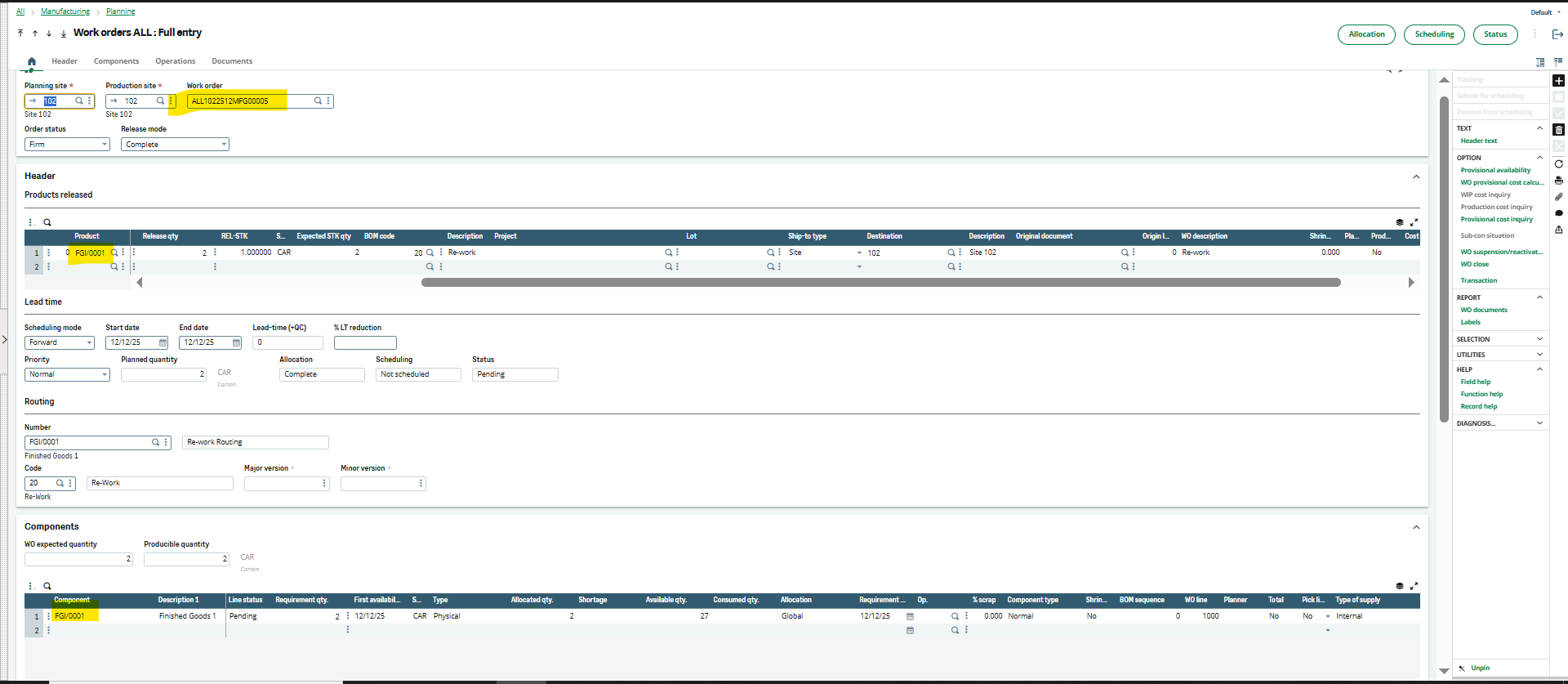
After creating the Work Order, you need to allocate the component stock quantity to it.
However, the system does not allow allocating quantities that are in R (Rejected) status. To handle this, you have three options:
- Assign the user the “Stock Administrator” role so they can manually allocate R-status stock to the Work Order.
- Perform a stock change transaction to move the stock from R status to A (Available) status, and then allocate it manually by selecting the respective Lot.
- Set up the rule to allow R-status stock and link it to the product category’s Work Order allocation rule in Issue flow tab.
In this example, the user is a Stock Administrator, so they can directly select and allocate the R-status quantity, as shown below.
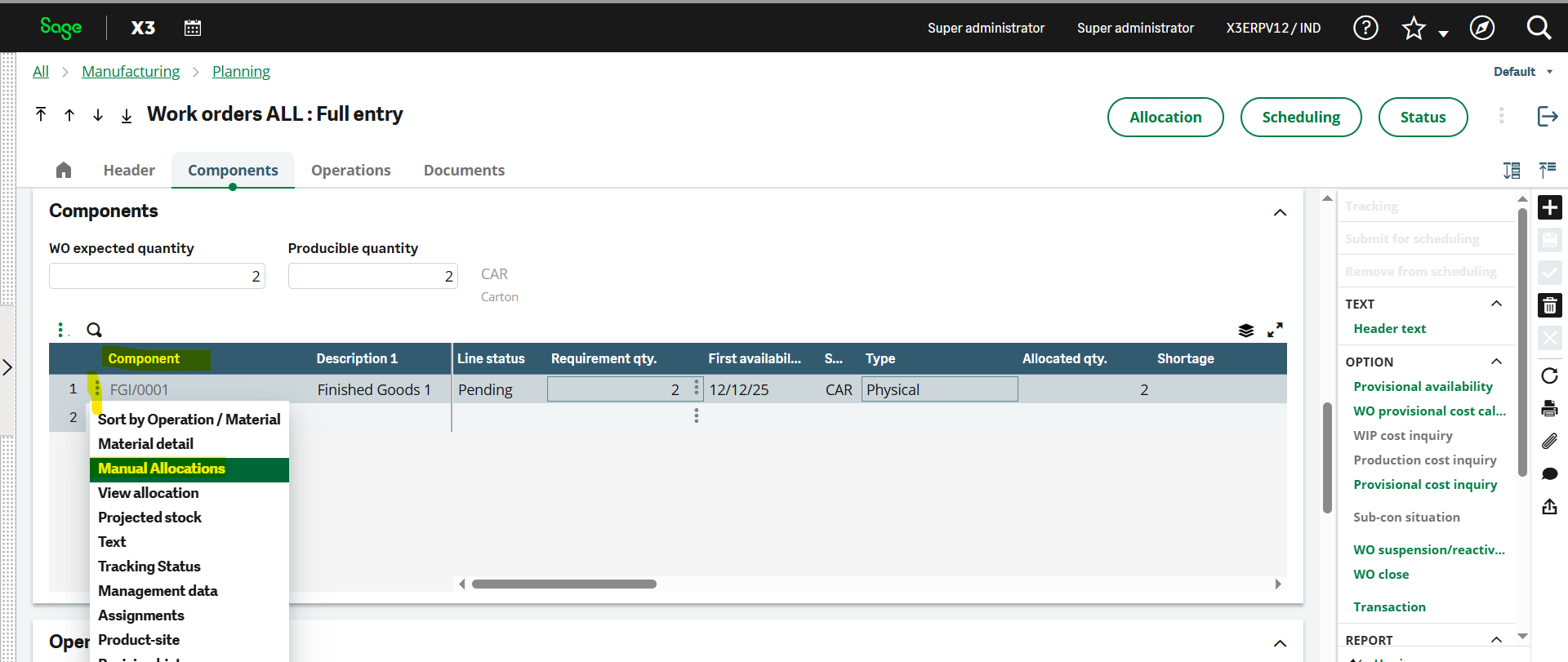
Since R-status lots do not appear in the stock selection window by default, you need to use the selection criteria to filter and choose the R-status lots.
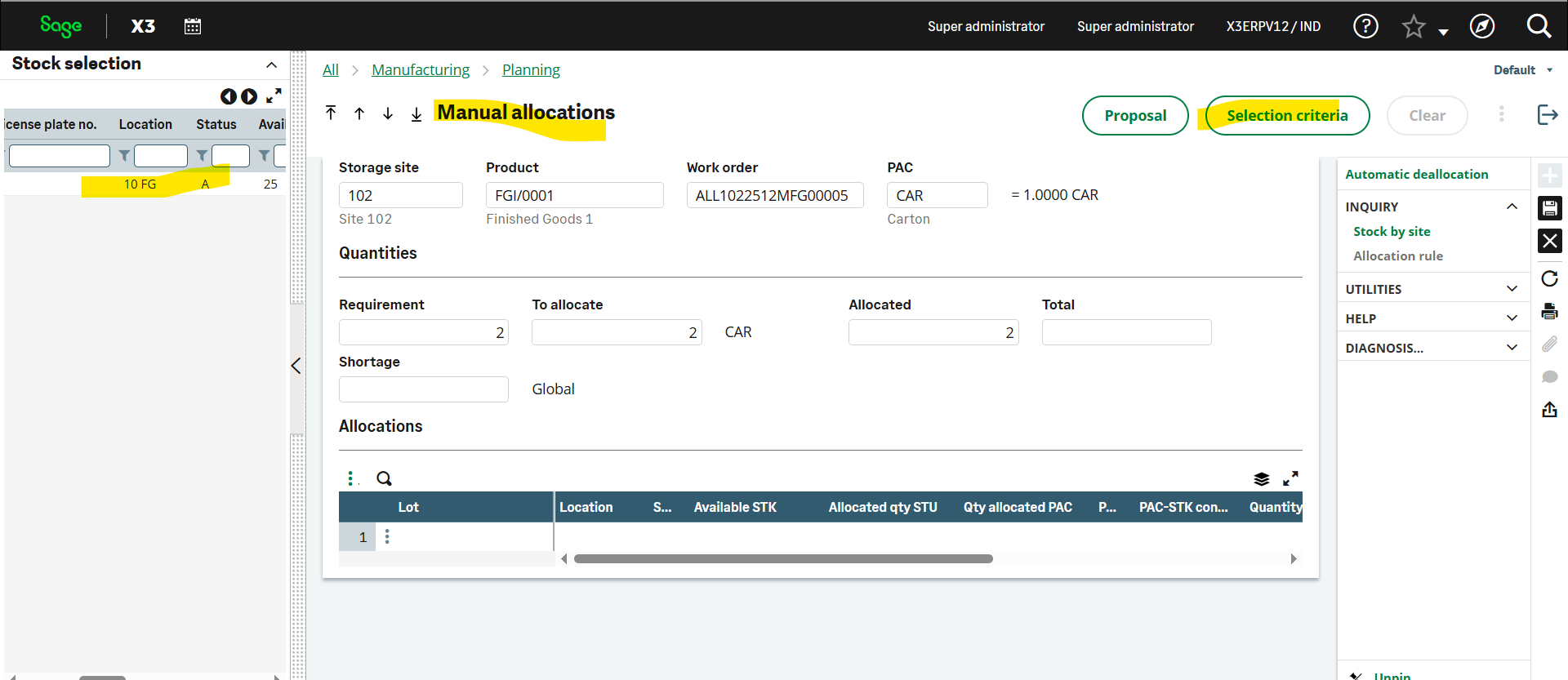
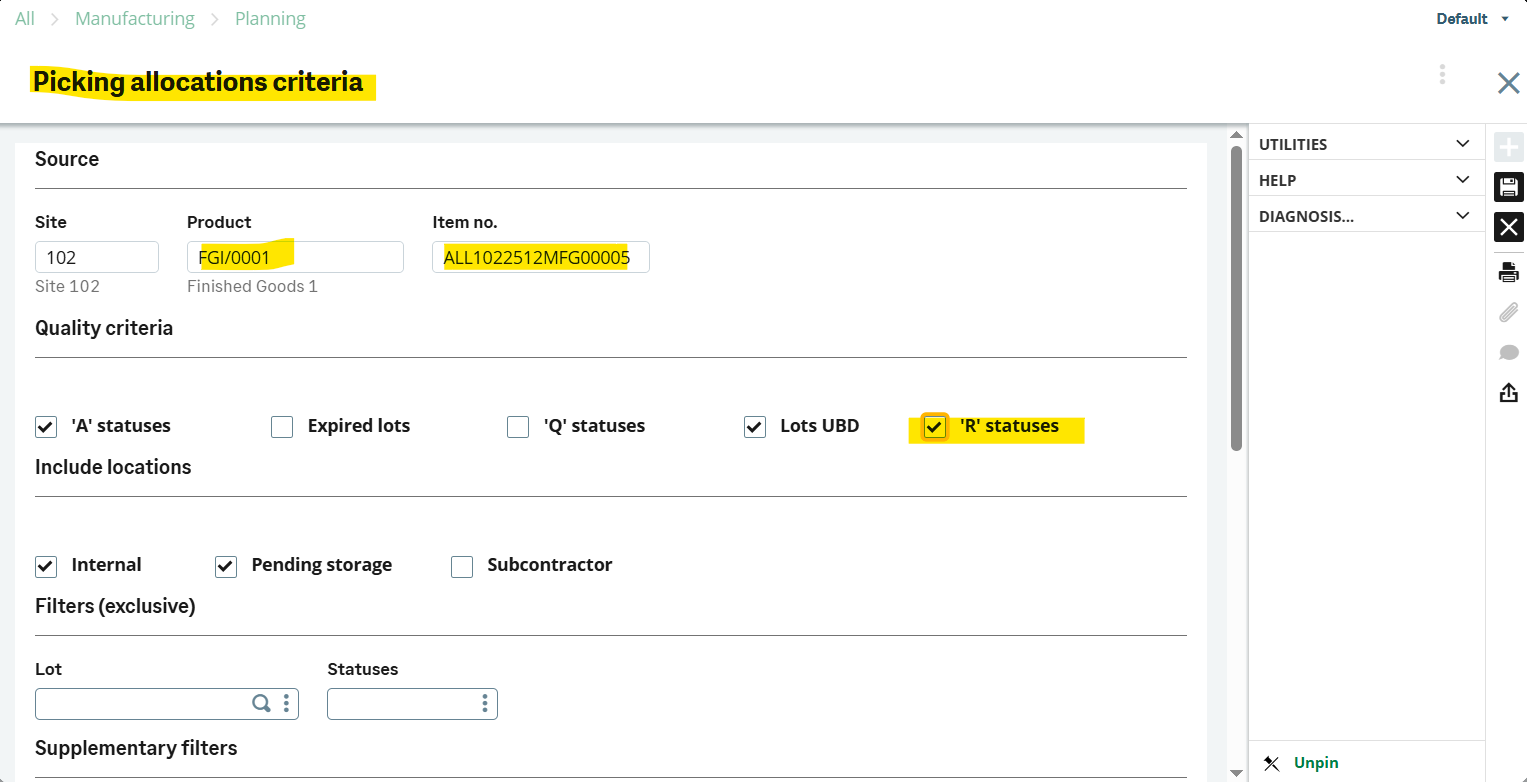
Now we can see the R status Lot is showing in the selection pane.
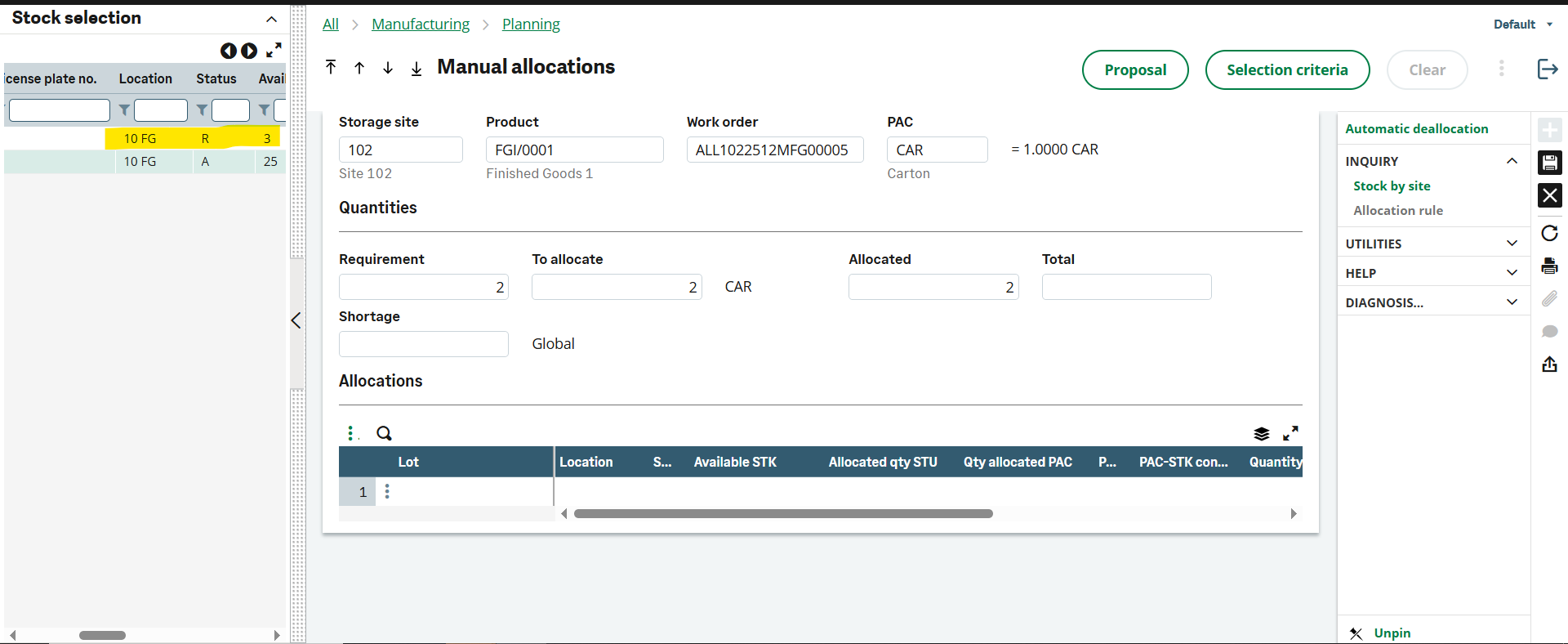
Select the R status Lot and click the “Save” button.
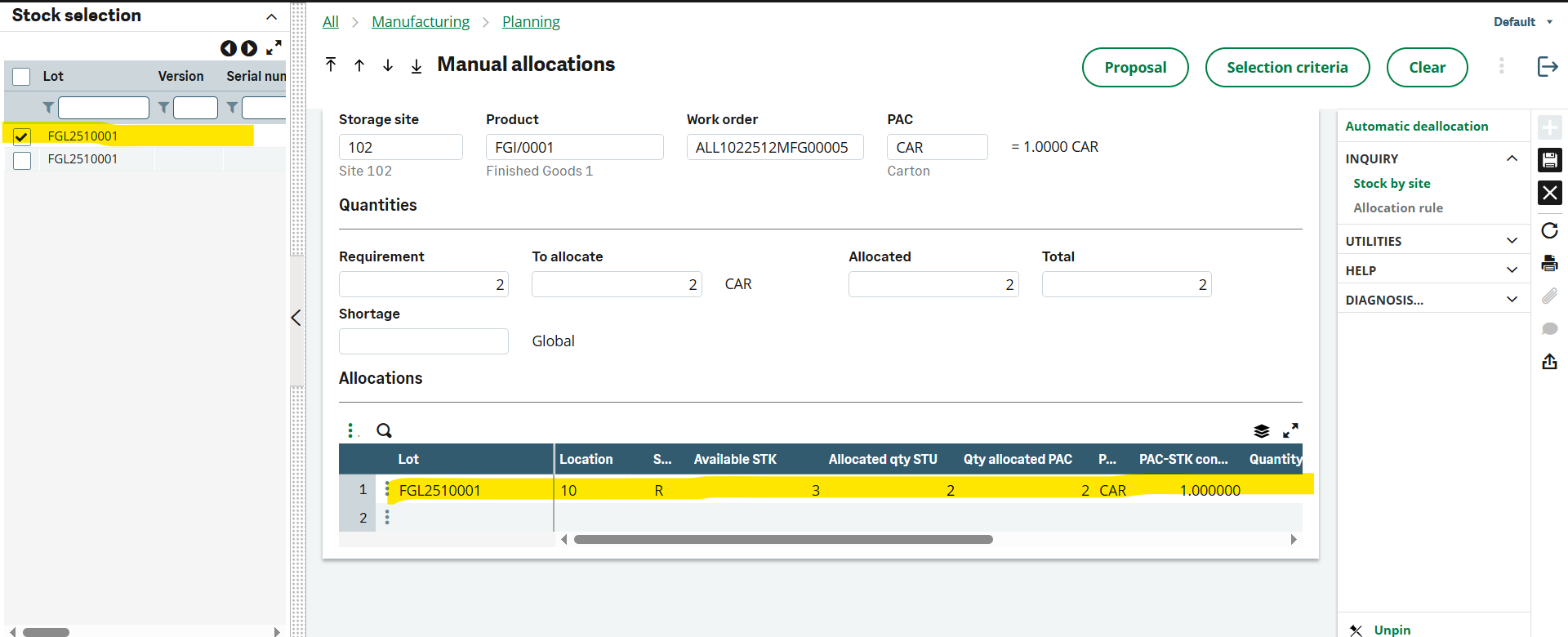
The Qty will get allocated.
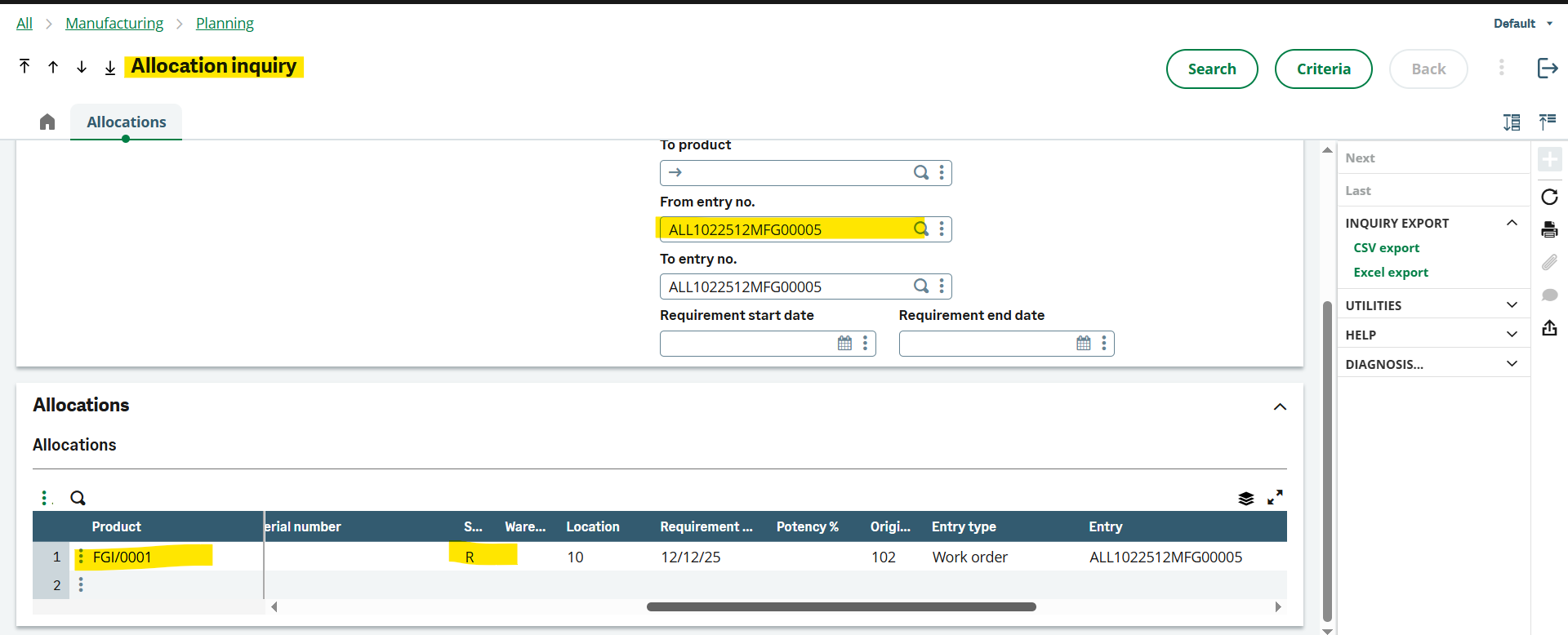
Check the allocation inquiry
Now carry out the production tracking following the standard process and then complete the work order.

Finally, close and cost the work order to generate the final financial impact.
Final Words
Sage X3 provides a separate protocol (a BOM and routing code) to manage your reworked finished goods. This separate mechanism helps prevent disrupting your standard inventory and altering the core manufacturing data. Moreover, this workaround makes it easier to track your rework costs.