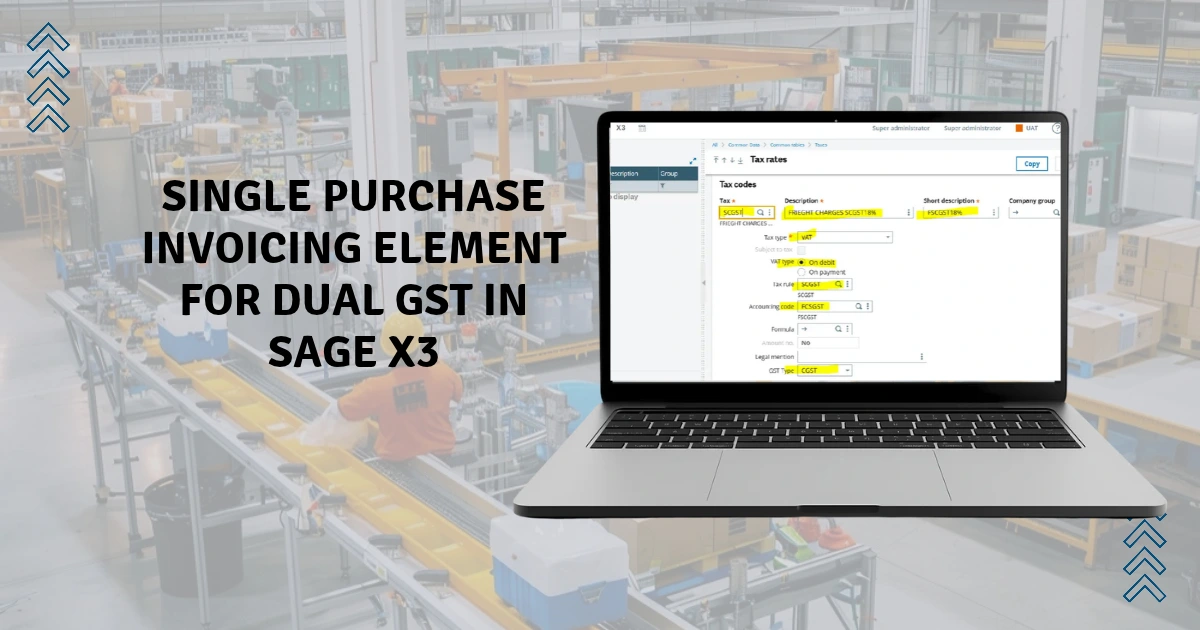
Typically, purchase invoicing elements require manual entry or two distinct lines to account for split taxes. Here’s the good news: You can automate the split by splitting a combined 18% tax into 9% SGST and 9% CGST with the automatic journal formulas available in Sage X3.
In this technical workaround, we explain how to set up a single purchase invoicing element (for example, freight charges) to automatically split and apply two distinct tax components in your ERP software, such as State GST (SGST) and Central GST (CGST). Let’s begin.
Step-by-Step Setup: Single Purchase Invoicing Element for Dual GST
In purchasing invoicing elements, the total amount is usually split between SGST and CGST. However, the setup below allows you to configure a single invoicing element for both tax levels. This ensures that users do not need to manually split the total amount between SGST and CGST.
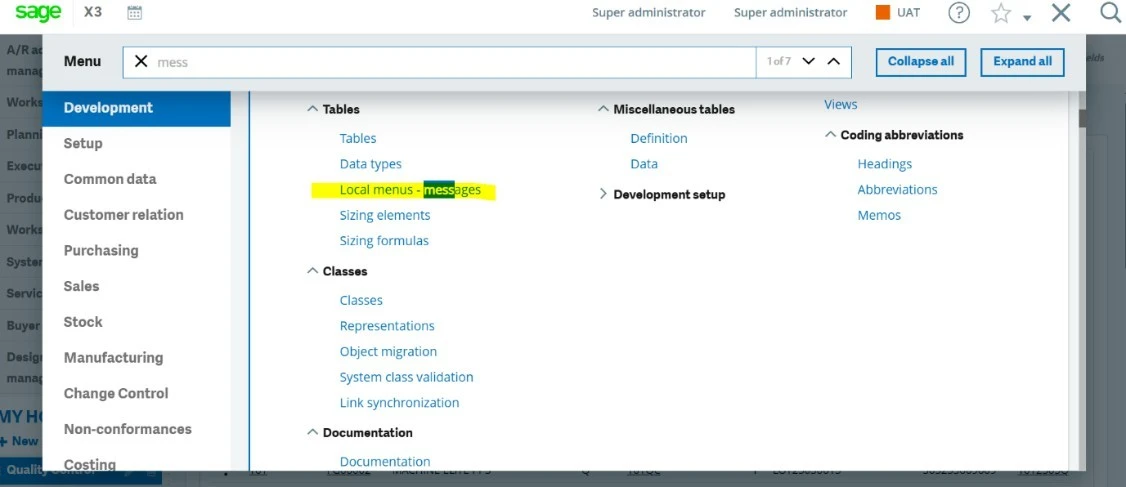
Navigate to development module >> Tables >> Local Menu – messages
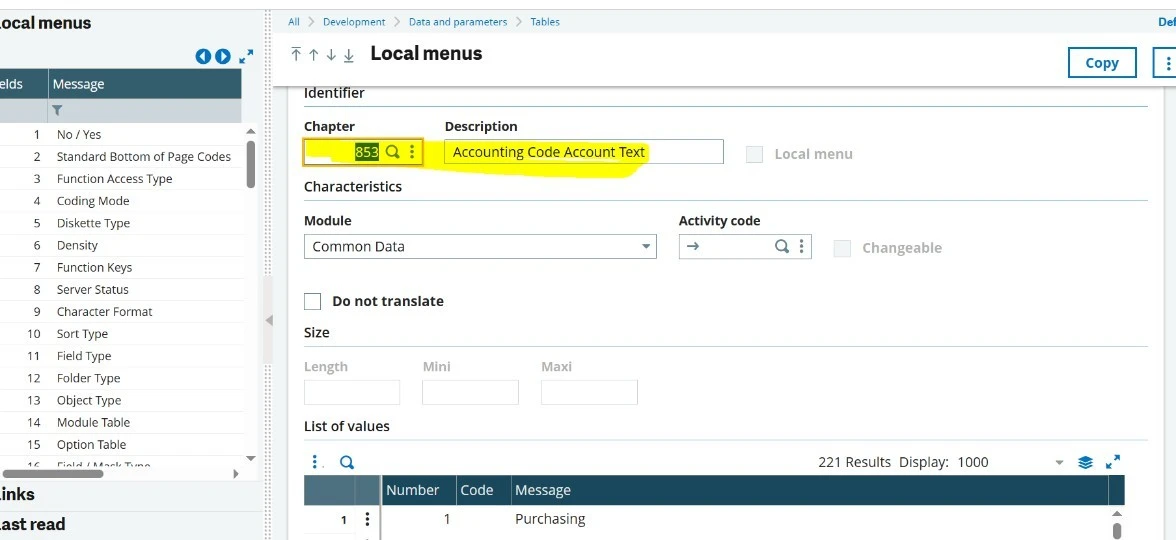
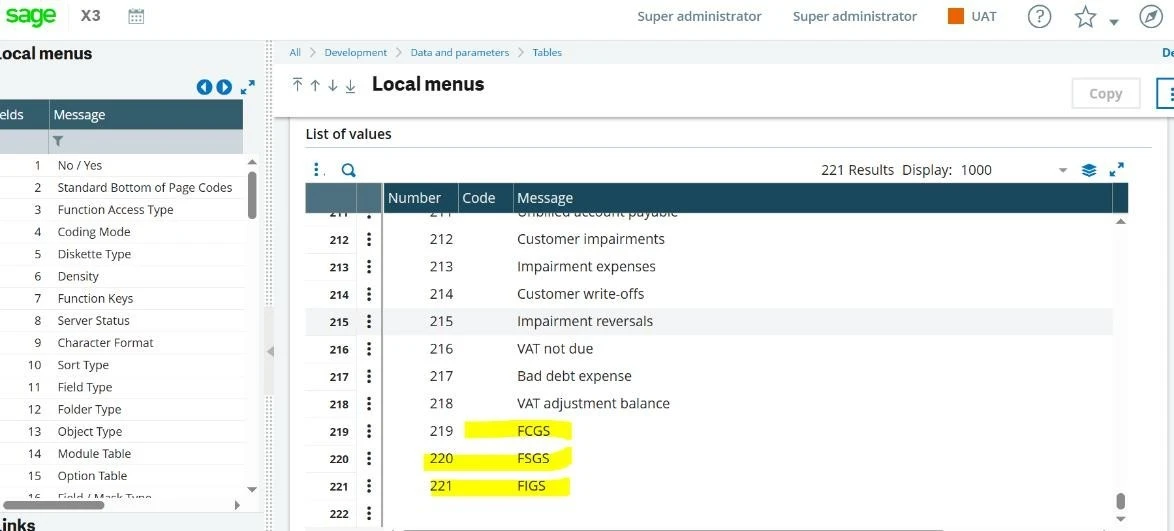
In the Local Menu chapter: 853-Accounting code account test, add 3 lines for invoicing element tax determinations as per the screenshot below.
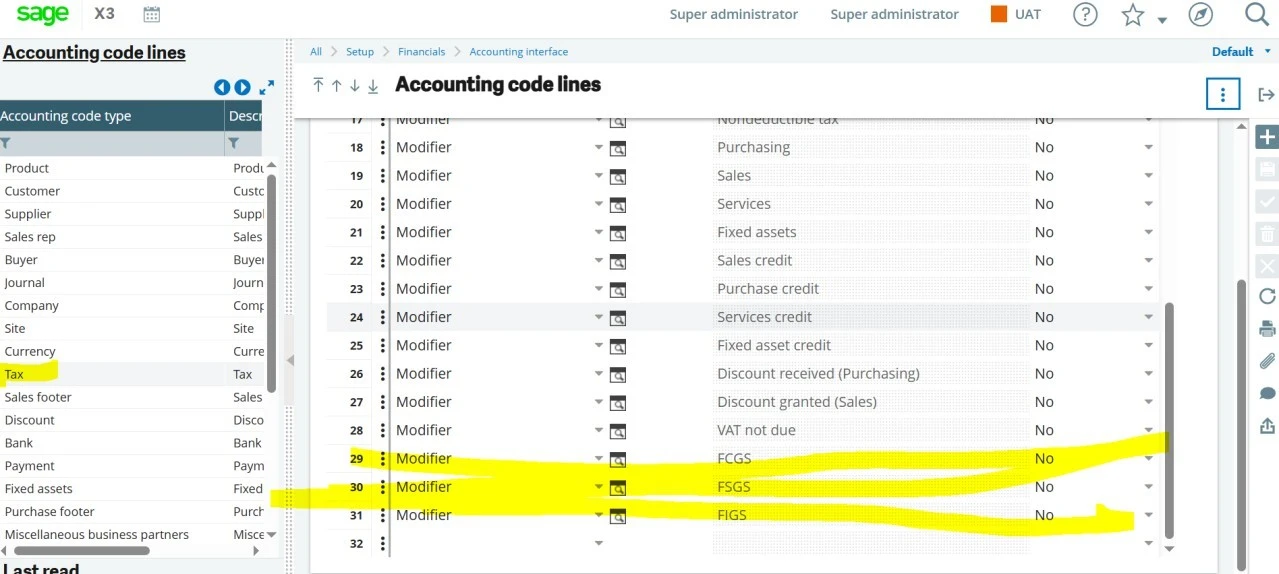
Once the three lines for invoicing element tax determination are added under Local Menu: 853, navigate to the Setup module → Accounting Interface → Accounting Code Line. Select the Accounting Code Type as ‘TAX’, and then add the same lines that were configured in the Local Menu. The system will automatically fetch these entries in the ‘Accounting Code → Tax Type’ field, allowing you to map the respective accounting codes to the invoicing element taxes.
Please refer to the snapshot below.
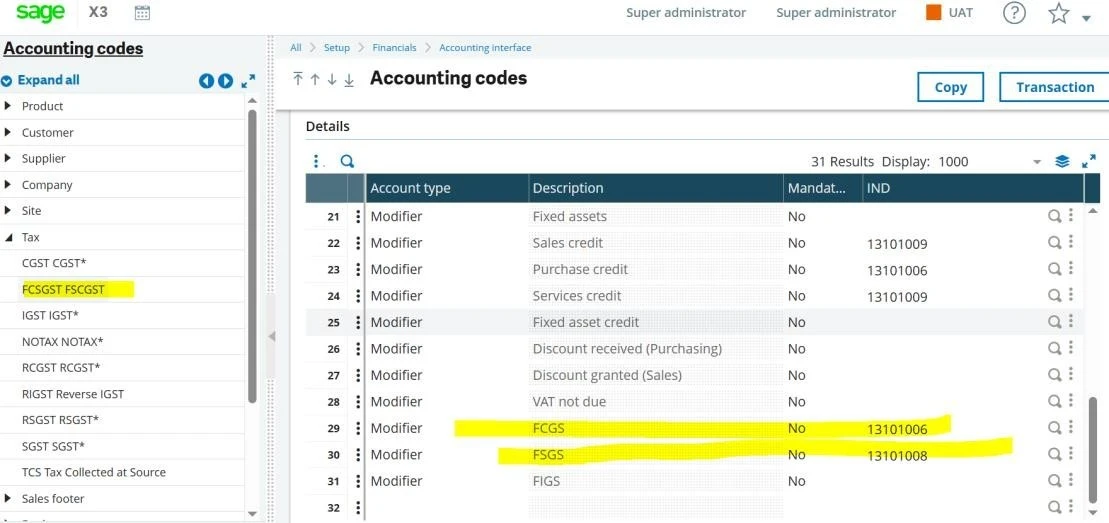
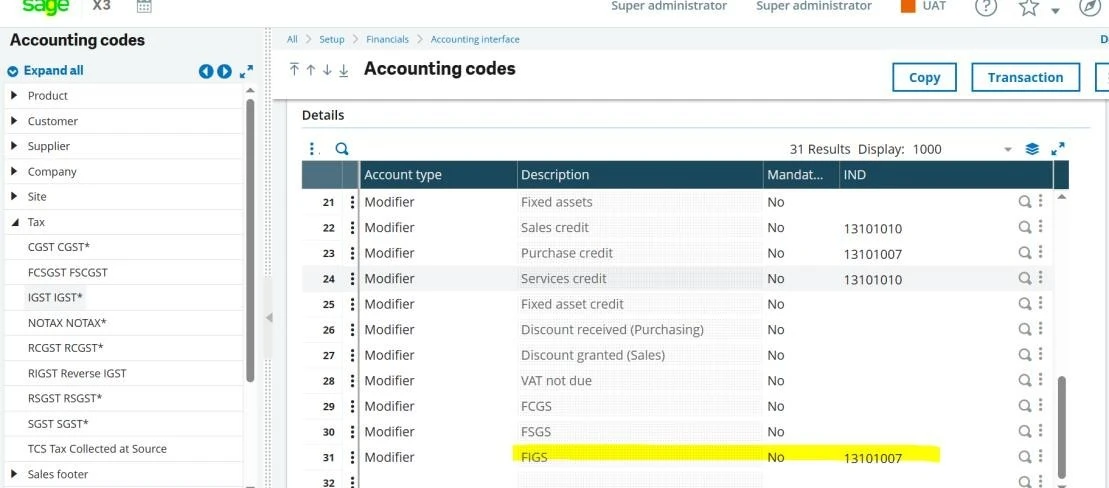
Once the accounting code setup is done, then we need to navigate to Setup>> Automatic journals >> ZPIHI>> Lines
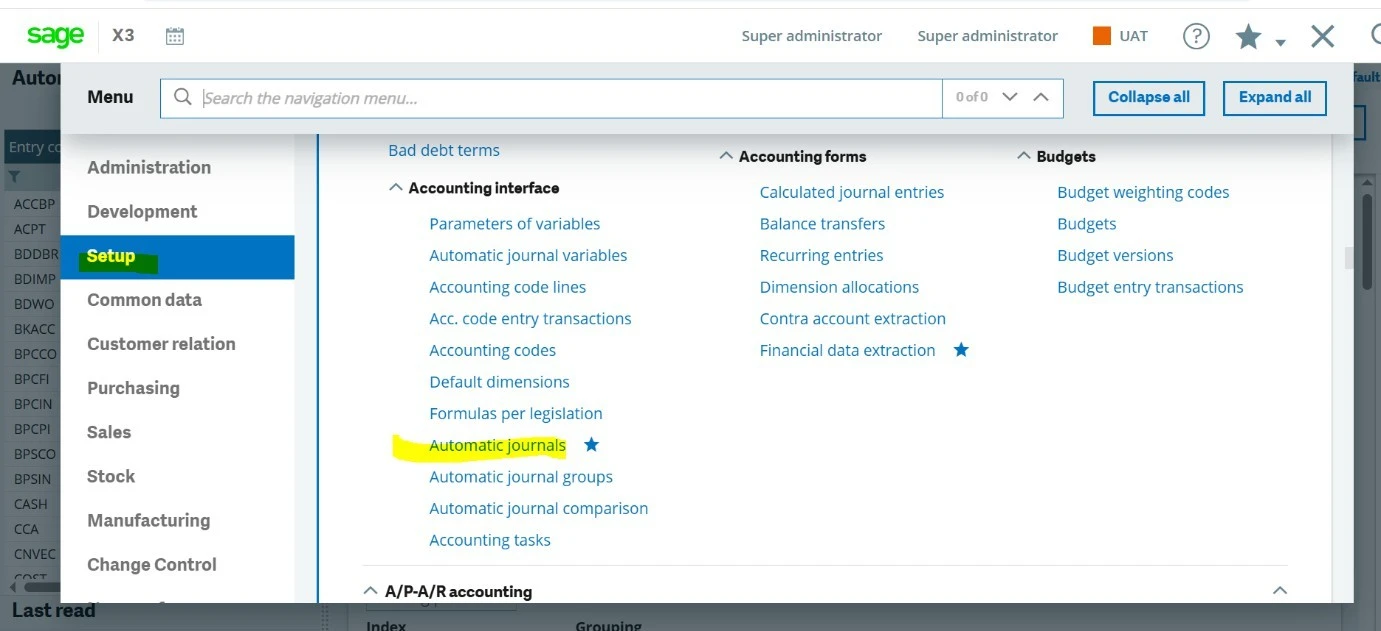
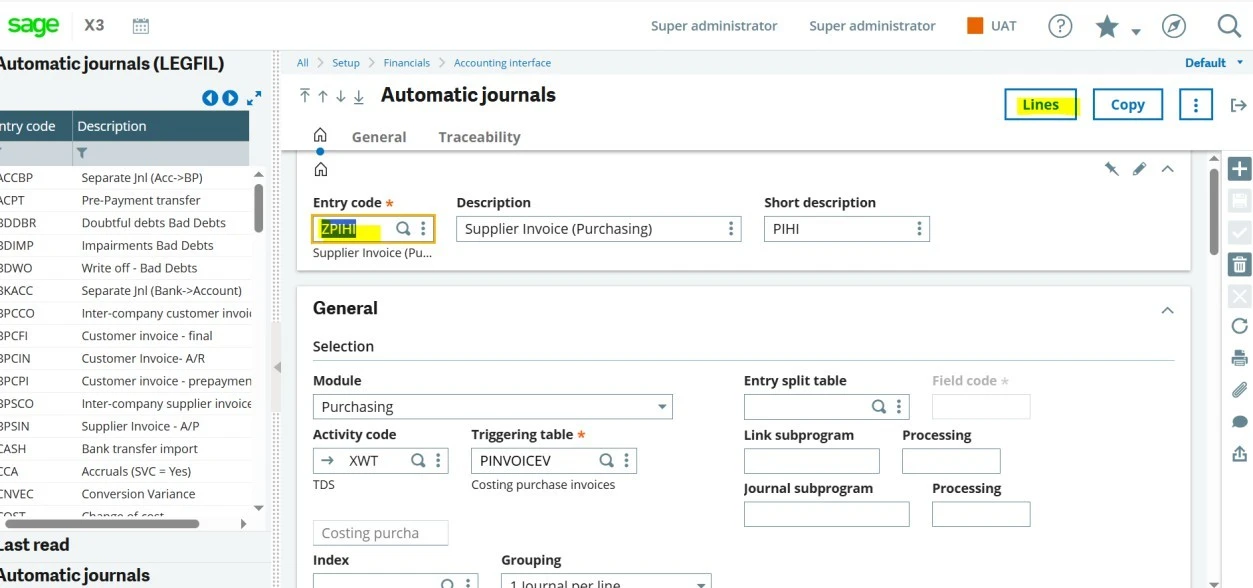
With the help of the technical team, we need to add the below highlighted lines and conditions.
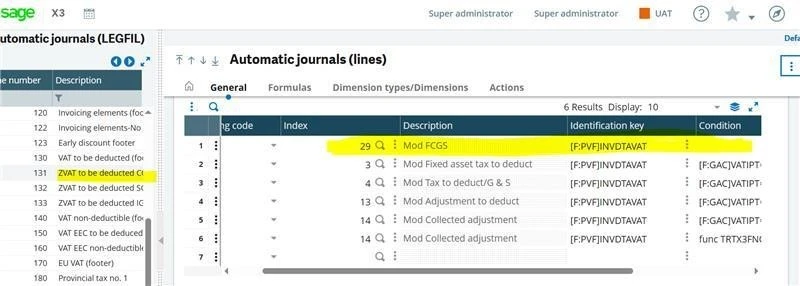
131 – ZVAT to be deducted CGS FR PF
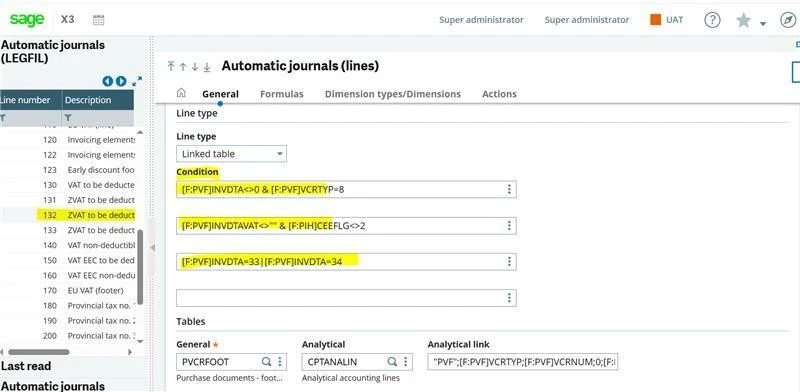
132 – ZVAT to be deducted SGS FR PF
133 – ZVAT to be deducted IGS FR PF
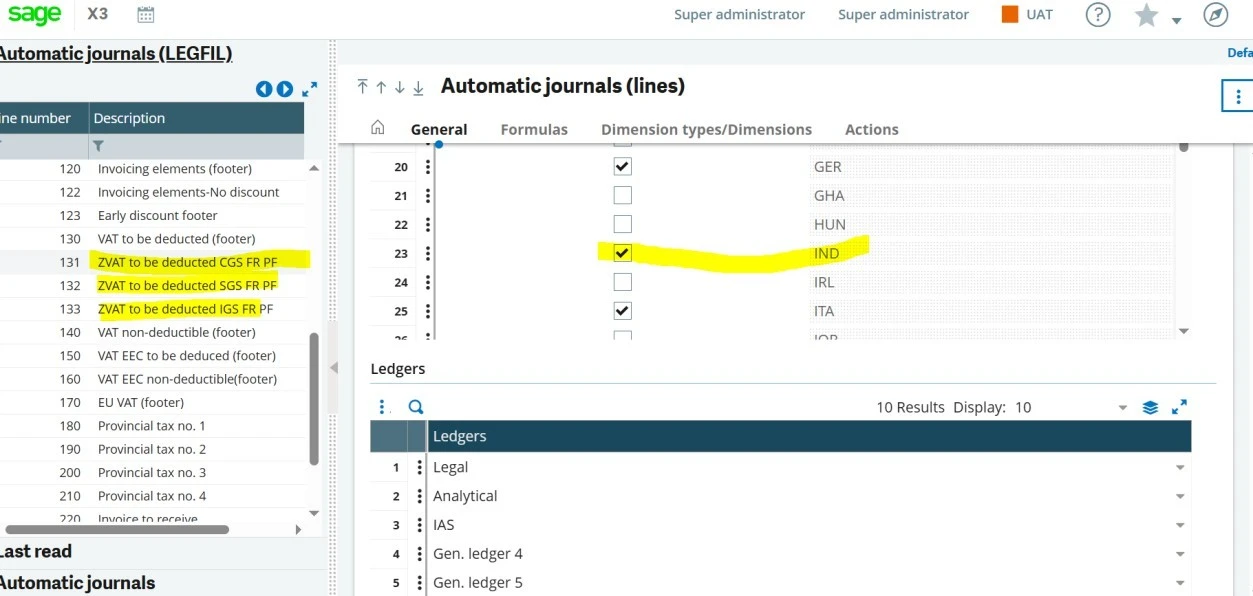
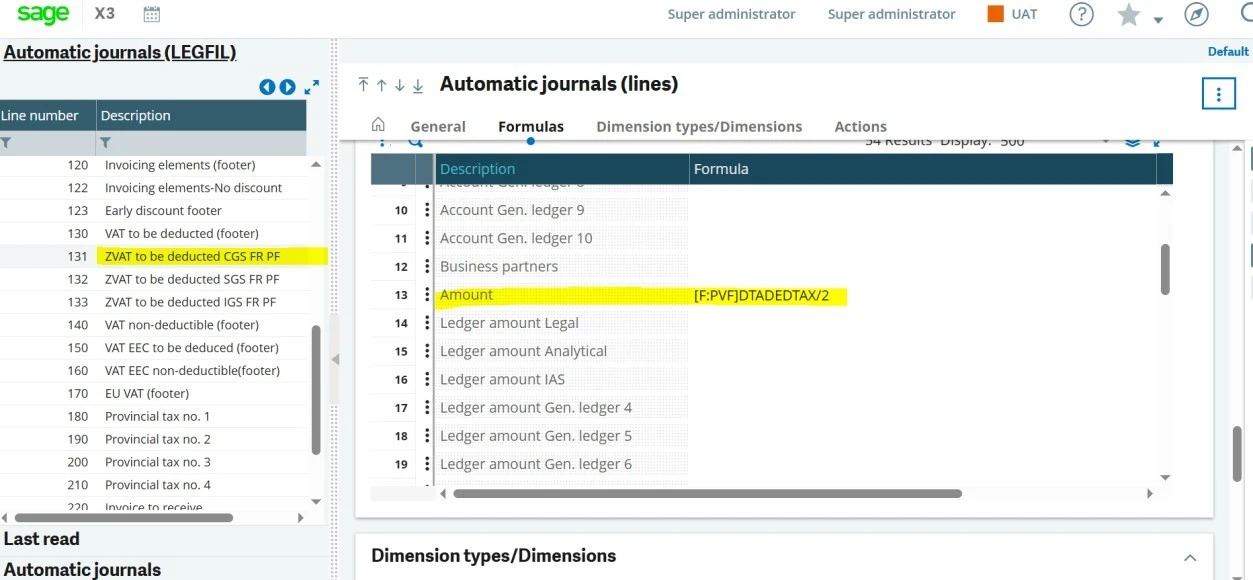
131 – ZVAT to be deducted CGS FR PF Conditions: IND should be enabled
Under the “Line type” tab, conditions are
[F:PVF]INVDTA<>0 & [F:PVF]VCRTYP=8
[F:PVF]INVDTAVAT<>”” & [F:PIH]CEEFLG<>2
[F:PVF]INVDTA=33|[F:PVF]INVDTA=34
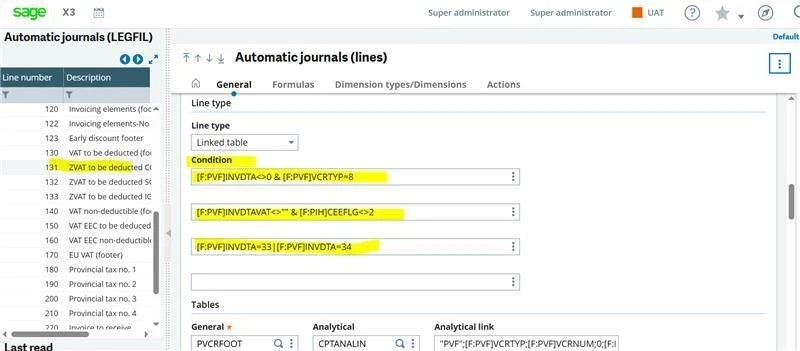
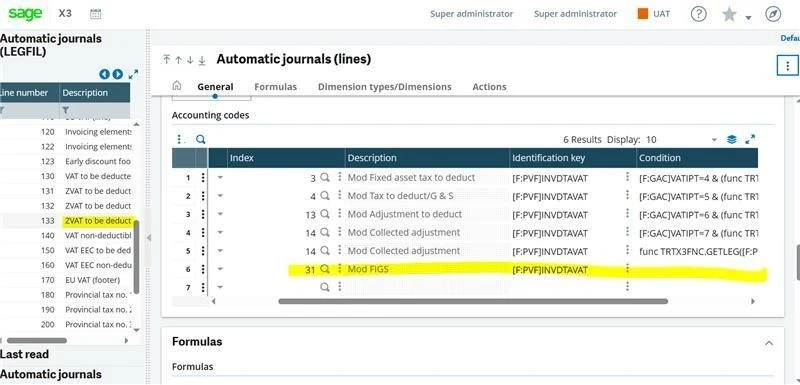
Under “Accounting codes”, the identification key must be [F:PVF]INVDTAVAT
Under the “Formulas” tab, line no. 13 amount column should be [F:PVF]DTADEDTAX/2
132 – ZVAT to be deducted SGS FR PF Conditions: IND should be enabled
Under the “Line type” tab, conditions are
[F:PVF]INVDTA<>0 & [F:PVF]VCRTYP=8
[F:PVF]INVDTAVAT<>”” & [F:PIH]CEEFLG<>2
[F:PVF]INVDTA=33|[F:PVF]INVDTA=34
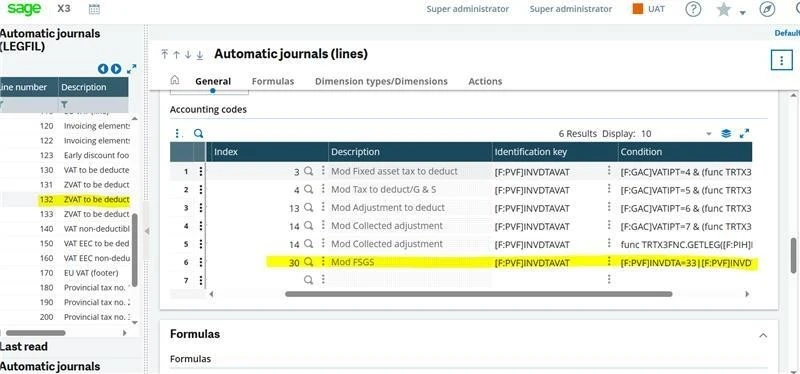
Under “Accounting codes,” the identification key must be [F:PVF]INVDTAVAT and condition
[F:PVF]INVDTA=33|[F:PVF]INVDTA=34
Under the “Formulas” tab, line no. 13 amount column should be [F:PVF]DTADEDTAX/2
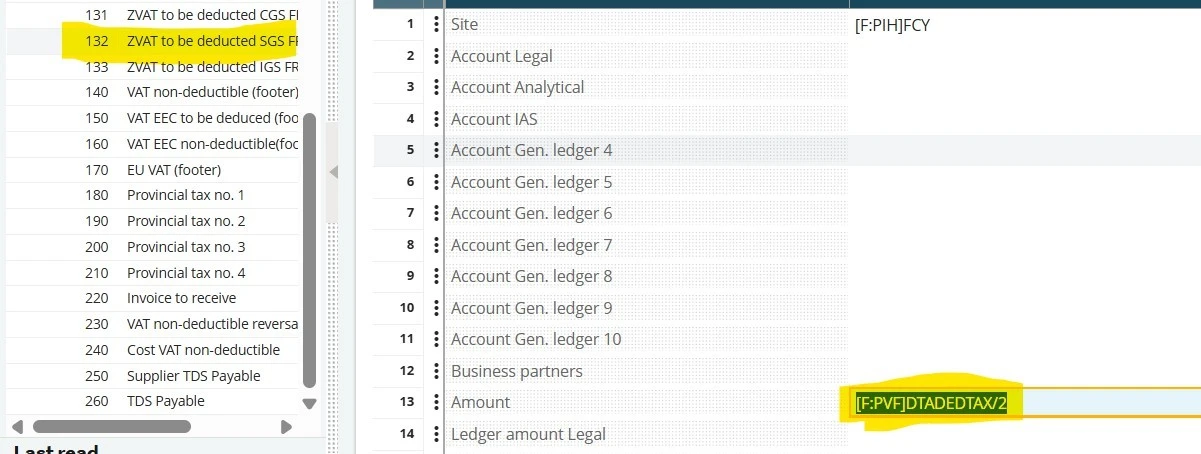
133 – ZVAT to be deducted IGS FR PF
Conditions: IND should be enabled
[F:PVF]INVDTA<>0 & [F:PVF]VCRTYP=8
[F:PVF]INVDTAVAT<>”” & [F:PIH]CEEFLG<>2
[F:PVF]INVDTA=35|[F:PVF]INVDTA=36
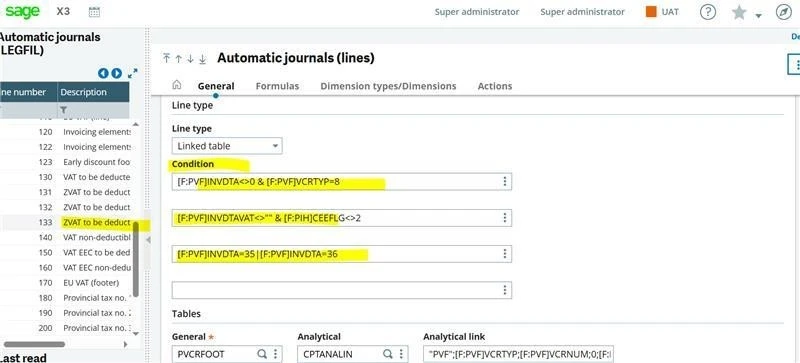
Under “Accounting codes”, the identification key must be [F:PVF]INVDTAVAT
Under the “Formulas” tab, line no. 13 amount column should be [F:PVF]DTAAMTTAX
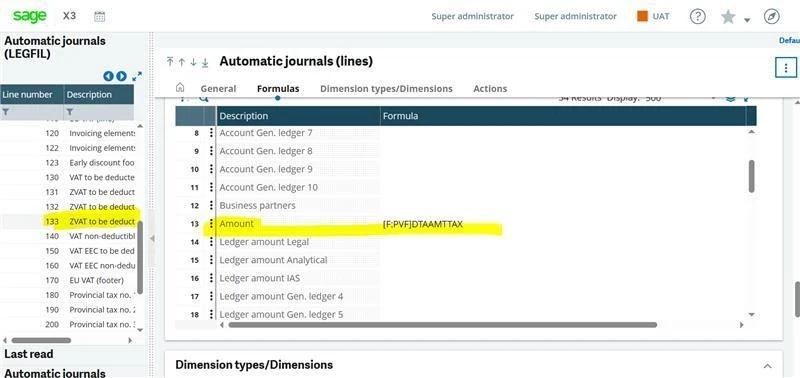
Once the above setups are done, we will be able to get a single invoicing element with 2 tax levels.
How to Set Up an Invoicing Element?
Navigate to Set up >> Purchasing >> Invoicing element
Create a new invoicing element for SCGST as per the screenshot.
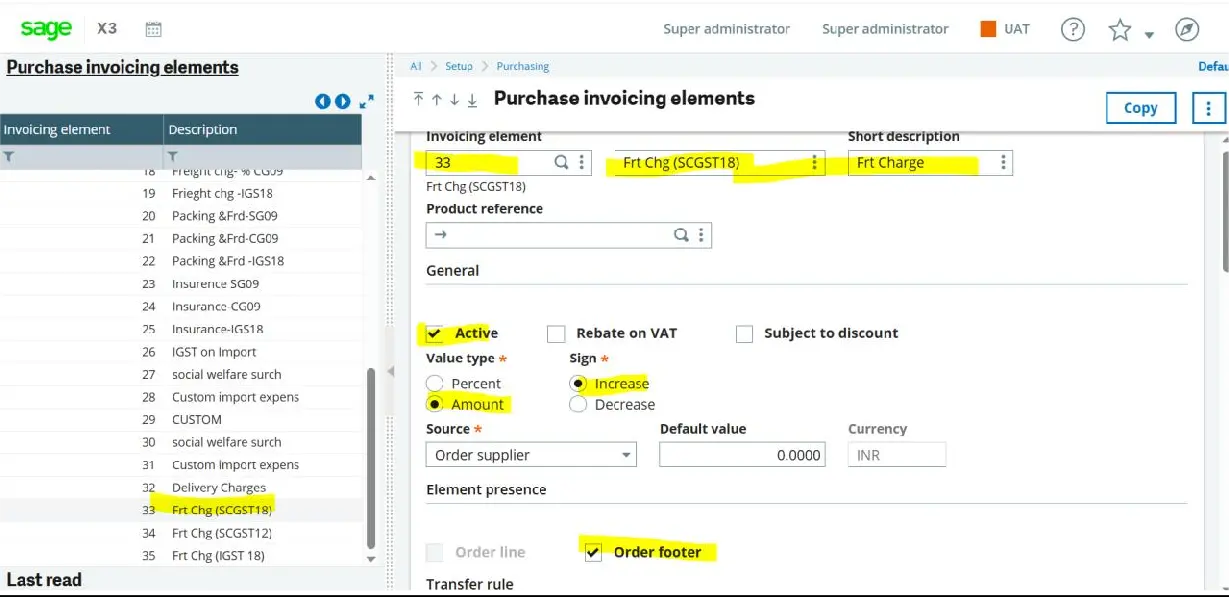
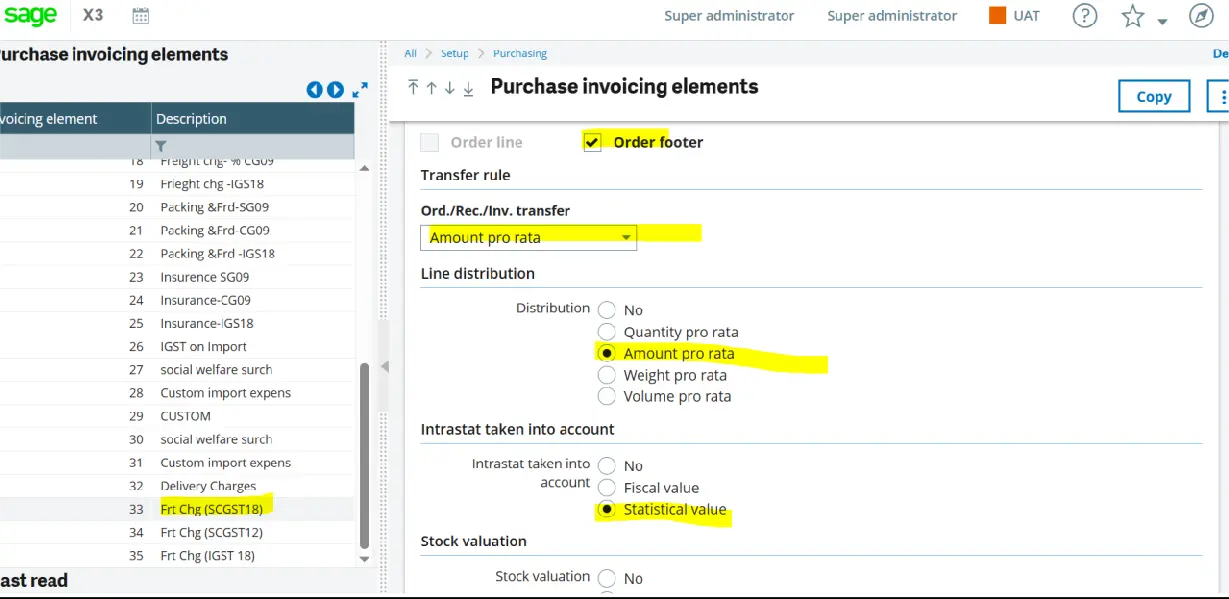
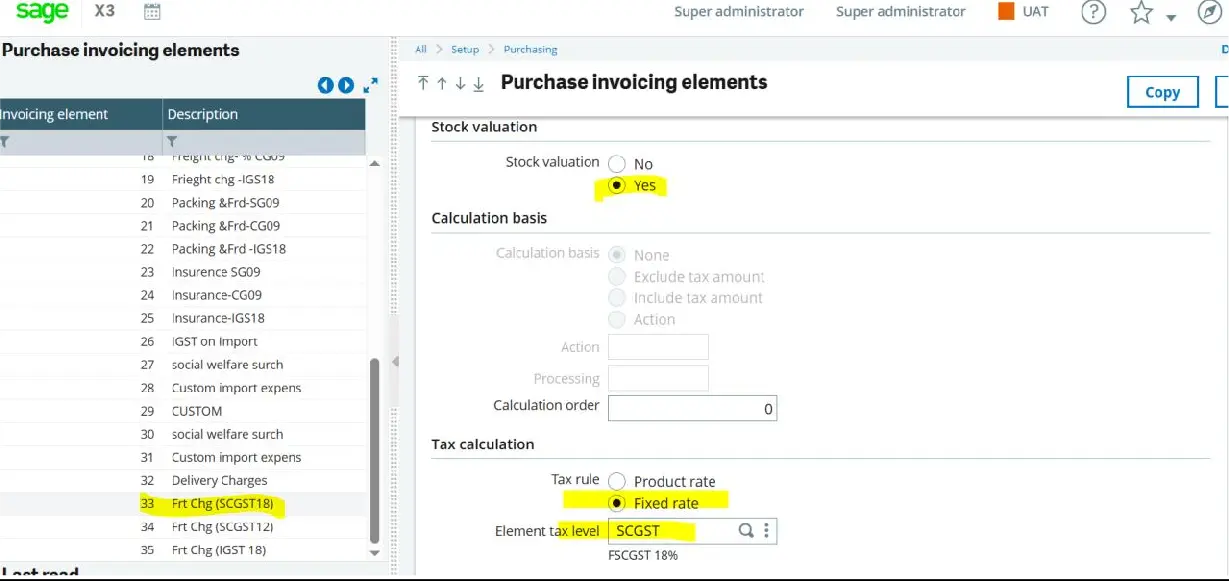
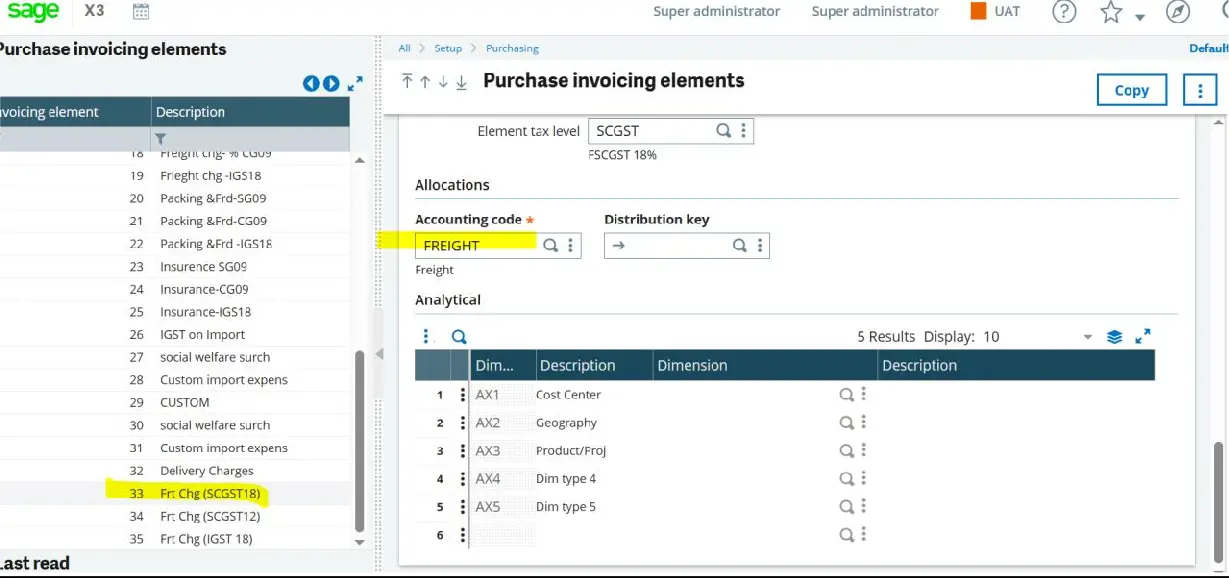
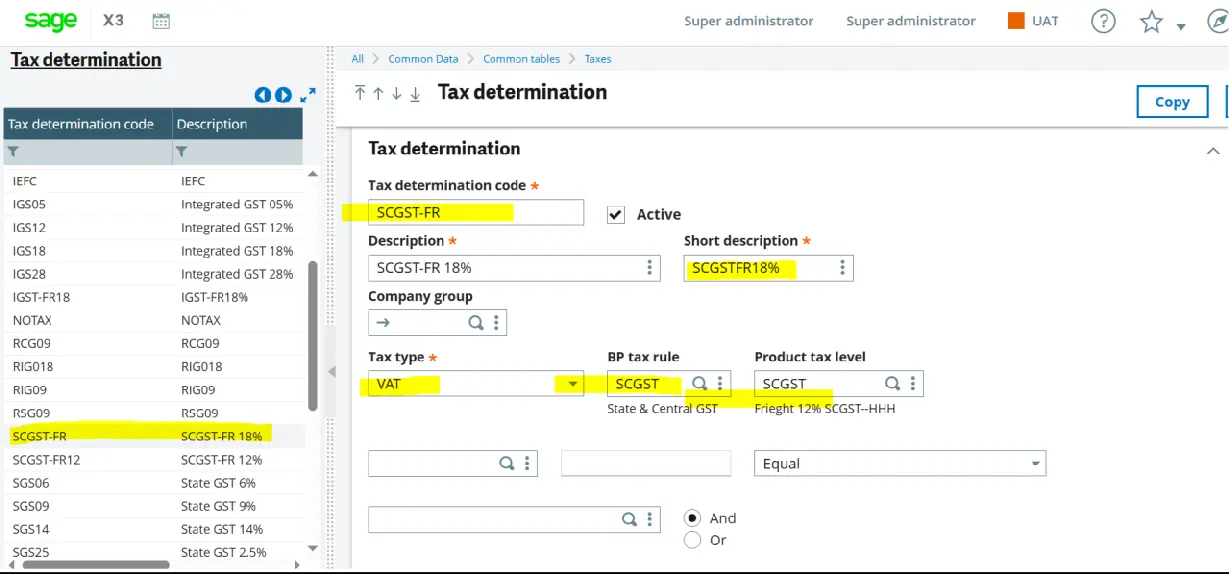
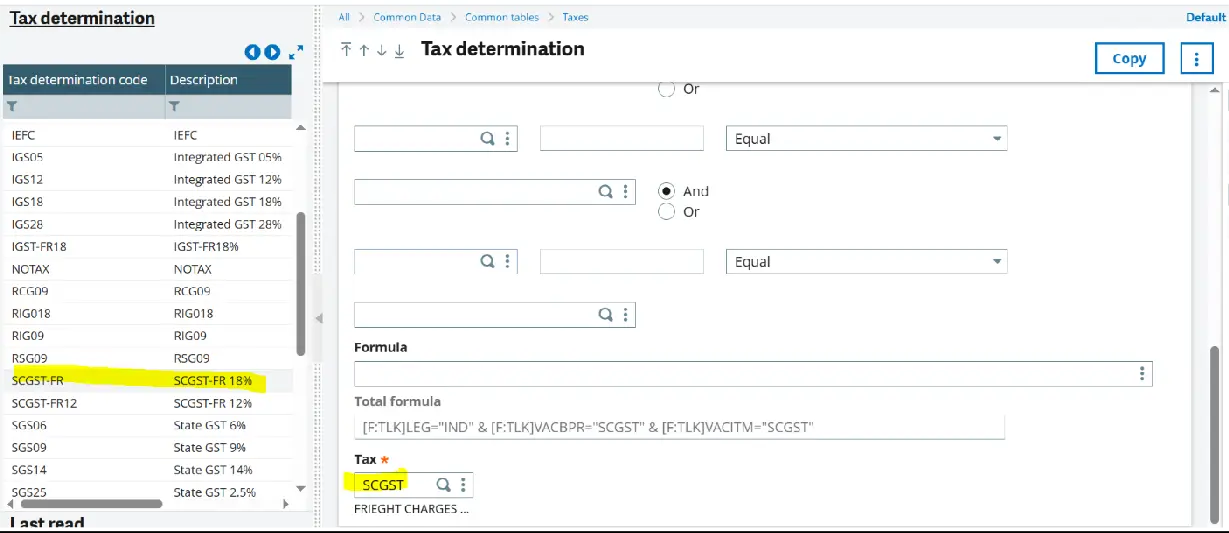
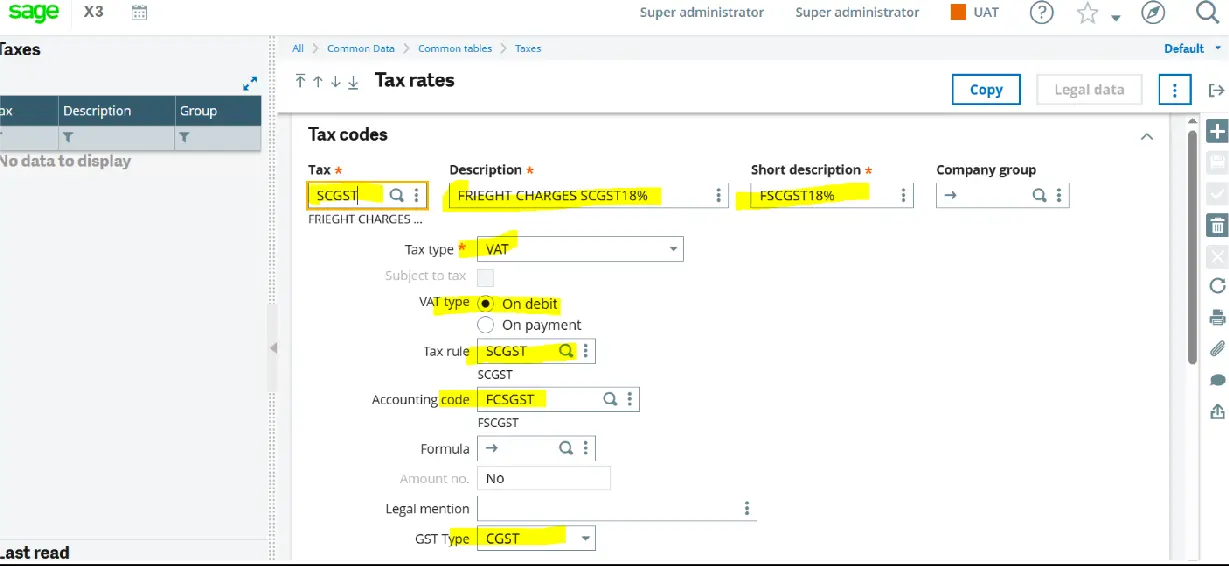
Need to create separate Tax rates and tax determination for SCGST invoicing element
Wrap Up
The purpose of this ERP configuration is to ensure implementation of the Govt of India’s Dual GST Architecture for intra-state transactions. It addresses the core requirement under Section 9 of the Central Goods and Services Tax (CGST) Act, 2017, which requires equal division of tax between the Central Government (CGST) and the respective State Government (SGST) during intra-state supply of goods or services. Setting up the Purchase Invoicing Element with the corresponding tax determination rules and tax codes in Sage X3 automates compliance with this requirement.